
Overview
Motivity supports the display and editing of specific appointment-related fields directly within the Clinical. This ensures that travel data and scheduling/appointment notes stay synchronized between Clinical and Practice Management.
Viewing Appointment Details
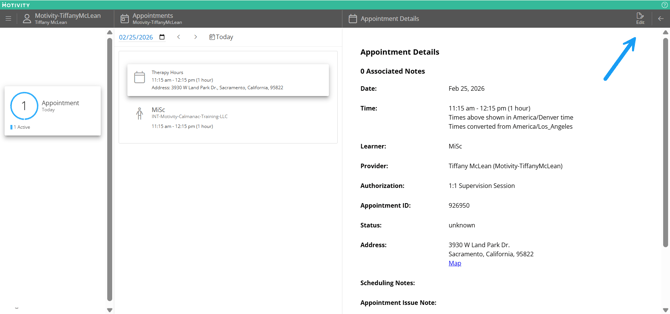
You can access the full appointment detail page (including drive time and mileage) through three primary navigation paths:
-
Personal Blade: Select Appointments from your personal menu upon login.
-
Learner Profile: Navigate to Learner > Appointments > Select Appointment.
-
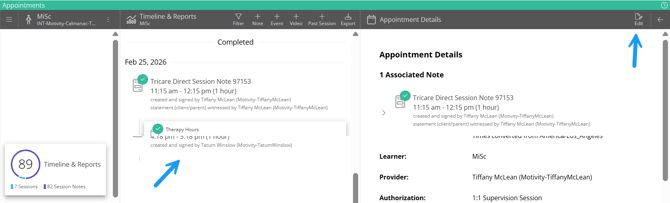
Session Notes: From a Learner’s Timeline or Pending Notes list, select the note linked to an appointment, then click the Linked Appointment Card.
Fields and Editability
| Field | Type |
| Estimated Drive Time / Mileage | Display Only |
| Scheduling Notes | Display Only |
| Actual Drive Time / Mileage | Editable |
| Appointment Issue Note | Editable |
Note: If scheduling notes or drive/mileage data have not been entered in PM, these fields will appear blank or as zero on the details page.
Editing Appointment Details
You can record actual travel data and appointment issue notes (up to 5,000 characters) in two locations.
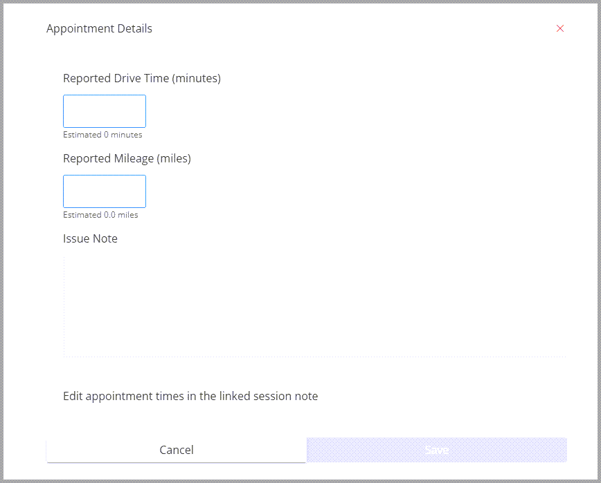
Location 1: Appointment Details Page
-
Navigate to the specific Appointment Details page.
-
Select Edit in the top right corner.
-
Enter the Reported Drive Time, Mileage, and any Issue Notes.
-
Click Save to sync the data to Motivity PM.
Location 2: Linked Note Workflow
This option is only available once a clinical note has been linked to an appointment.
-
Open the note linked to the appointment.
-
Select Appt Details at the top of the note page.
-
In the editing box, enter your travel data and notes.
-
(Optional) You may also revise the note/appointment times or unlink the note from this view.

-
Click Update to sync changes.
Note: Appointment Issue Notes provide a direct communication channel to your administrative team regarding session-specific incidents. Use this field to document unexpected changes, such as a learner becoming ill during a session or significant traffic delays that impacted your scheduled time.
Permissions
By default, all users can view and edit their own appointments. Administrative permissions are also available for corrective workflows.
New Permission Logic
-
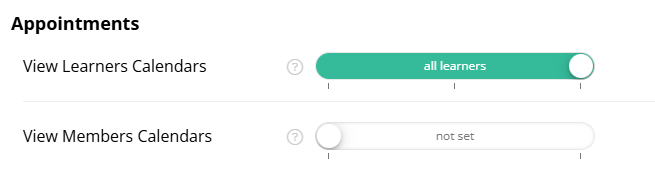
Edit Learner Appointments: Allows a user to edit a learner's appointment even if they were not invited to it.
-
Edit Member Appointments: Allows a user to edit other staff members' appointments.
Restrictions for Users Without Permissions
If a user does not have the necessary edit permissions for a specific appointment:
-
The Edit button will be hidden on the Appointment Details page.
-
The Appt Details dialog within the notes workflow will hide the fields for drive time, mileage, and issue notes.
Last Updated: 2/20/26 by Tatum Winslow