
Overview
Bulk Data Exports allow users to generate CSV exports for a learner group or all learners. This feature helps teams work more efficiently when they need to review, analyze, or share large sets of clinical data.
Note: Chart exports are still done one learner at a time.
How to Initiate a Bulk Export
-
Navigate to the location where you want to export data, such as:
- All Learners
- A learner group
- Select the Export button
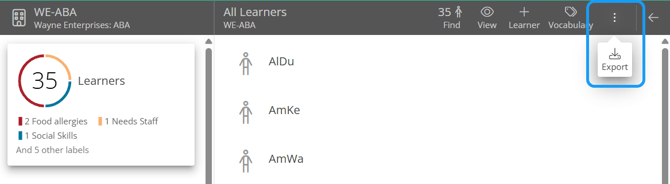
-
In the export menu:
- Select the type of export
- Choose the start and end dates
- Click Export
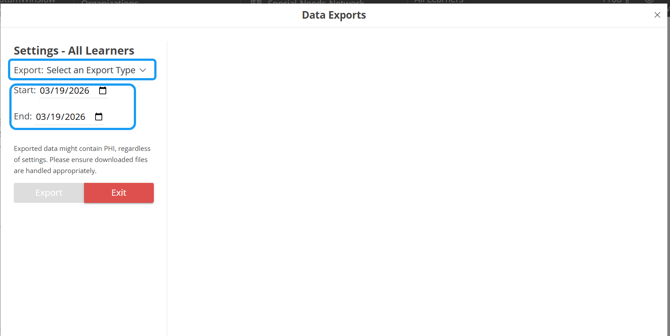
You will see additional options when selecting export type Note Data.
Which note type to export:
-
General Notes
-
Session Notes
-
Reports
-
All
Which note status to export:
- Unsigned
- Revision Requested
- Awaiting Approval
- Completed
- All
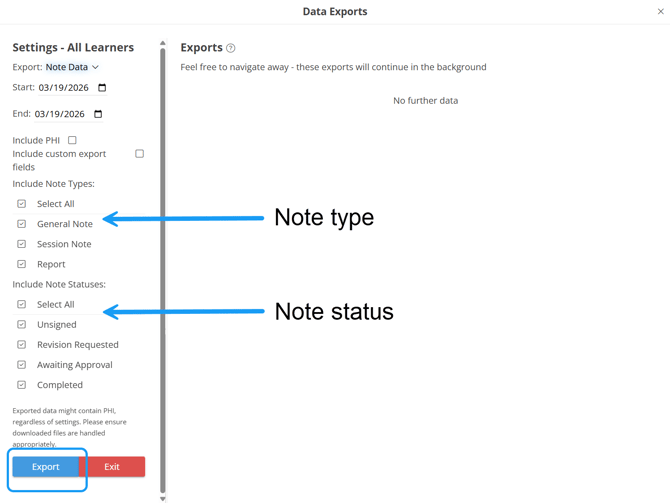
Once you have configured your export, select the Export button. The export will begin generating in the background. You can continue working while the export completes.
To review your export, click the export button and select the same export type. You will see your export in a queue. If it is ready, a green check mark will appear next to it; if it is still generating, a gray circle animation will indicate that the system is still working. Once finished, simply select your export to download it.
Last Updated: 3/19/26 by Tatum Winslow