
Overview
By using Domain Filtering, you can automatically include or exclude programs of specific domains within your reports. This ensures your clinical reports only contain data relevant to your needs and preferences, saving time and reducing manual administrative work.
How it Works
Configuration takes place directly within the Program/Target import field settings of your report template.
Step 1: Access the Field Settings
-
Open your report template.
-
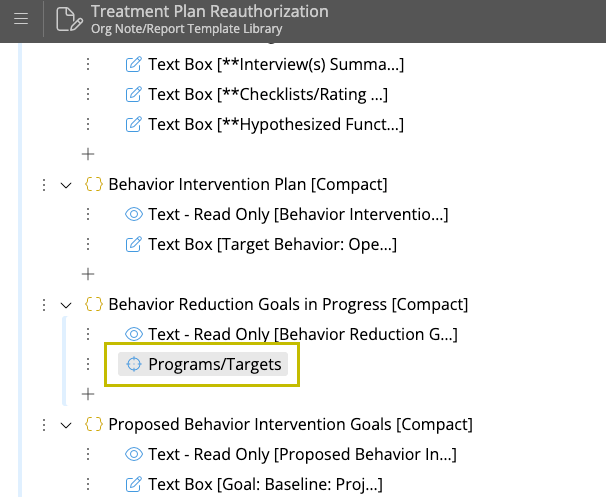
Navigate to the Programs/Targets field.
-
Select an existing field to edit, or add a new one to the template.
-
Click the field to open the Edit Options panel.
Step 2: Enable Domain Filtering
-
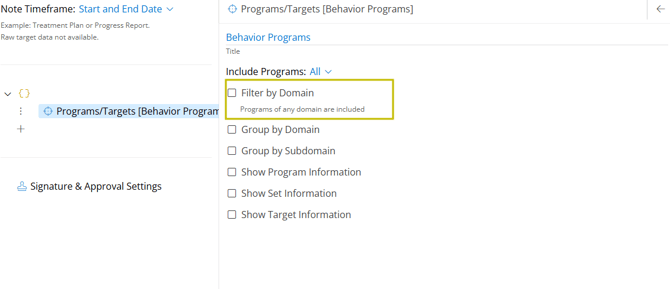
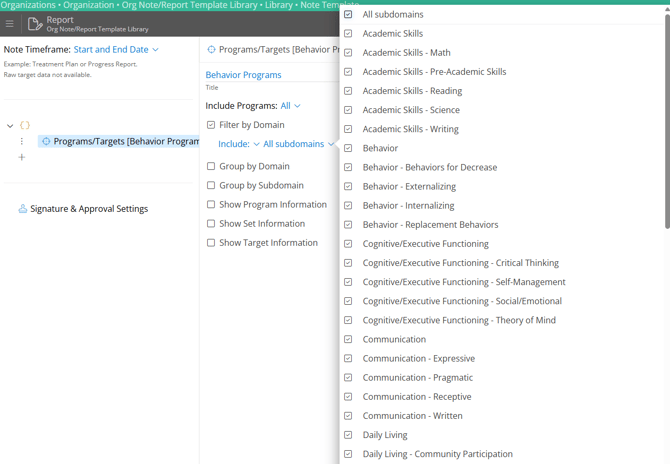
In the middle edit panel, locate the Filter by Domain checkbox.
-
Check the box to expose the advanced filtering options.
Note: You can uncheck this box at any time to remove the filter and revert to showing all programs.
Step 3: Configure Your Filter Logic
You can customize exactly which data pulls through using two primary dropdowns:
-
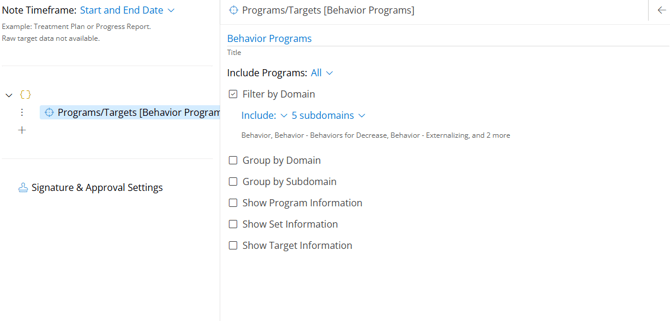
Logic Selector: Use the first dropdown to choose either Include or Exclude.
-
Domain Selector: Use the second dropdown to check the specific domains you want to filter.
-
Subdomains: You can select multiple subdomains from the list.
-
No Domain Assigned: Use this option to capture or hide programs that haven't been categorized yet.
-
-
Preview: The system will display a summary of your selections (e.g., "4 subdomains") for quick reference.
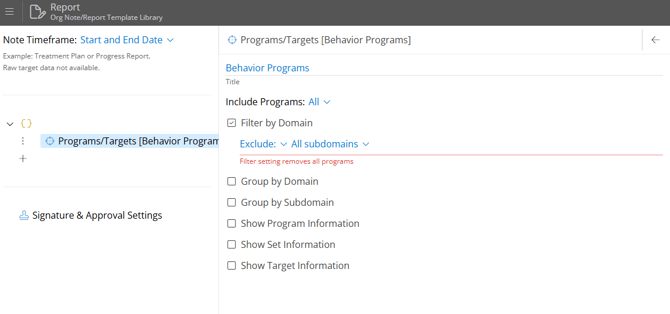
Warning: If your filter settings are too restrictive and result in no programs being included, a warning message will appear to help you adjust your criteria.
Step 4: Save and Use
-
Click Update to save your changes to the template.
-
When the report is generated, only programs matching your domain criteria will be populated in this section.
Last Updated: 3/27/26 by Tatum Winslow