
Overview
Drafts are a useful tool in Motivity, but it is important to know how to manage them. Unmanaged drafts may lead to overwriting work and unintentionally deleting targets. This article reviews how to responsibly manage drafts.
What is a Draft?![]()
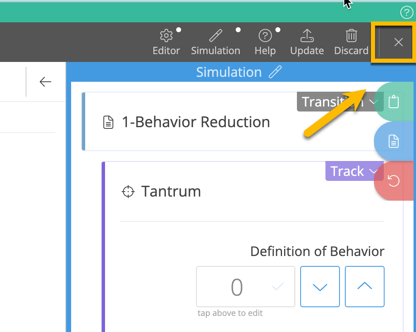
When you open a program for editing, you create a new draft of the program. Changes made within a draft are not visible to anyone but you until you click "Update".
If you exit the program editor without selecting "Update" or "Discard", the program will remain in draft mode and the changes made will not be applied publically. Team members will continue to work off of the most recently updated version of the program.
Viewing Drafts
How Do I View My Drafts?
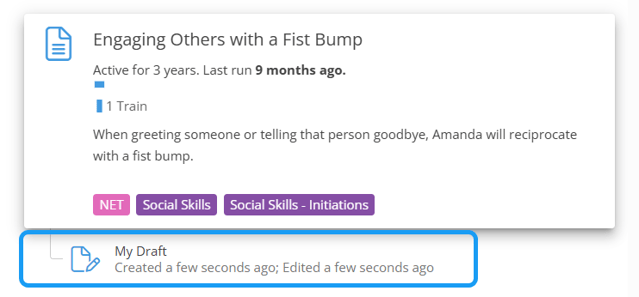
You will see a "My Draft" icon under your program until the draft is updated or discarded. If you keep an open draft, you will see it in your Drafts tab.
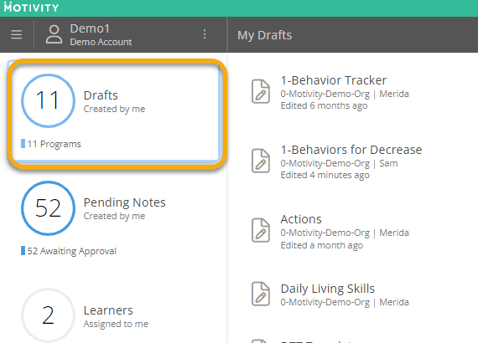
You can quickly access your Draft tab by navigating to your Dashboard and selecting "Drafts". Clicking on the tab shows you a list of drafts and how long ago the draft was created. If you don't see a Drafts tab, that means you do not have any outstanding drafts that need to be addressed.
How Do I View Other's Drafts?
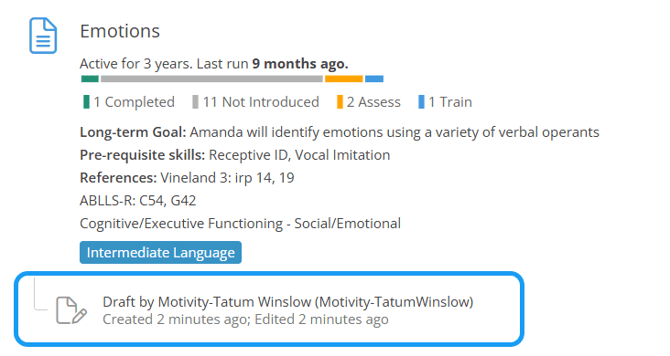
All drafts are indicated by a Draft icon found under a program. If the draft belongs to another user, you will see name of the user and how old their draft is.
Multiple Draft icons are displayed if multiple drafts for the same program exist.
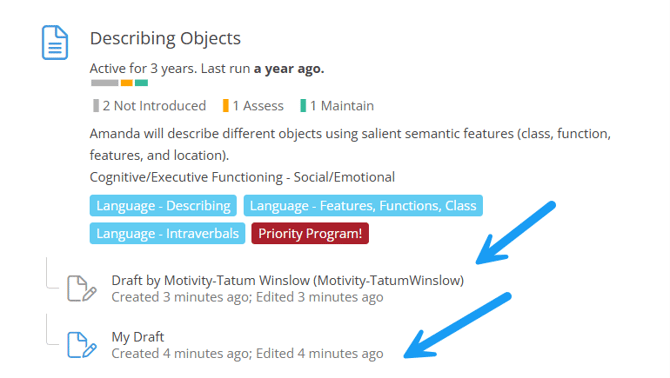
Important: Drafts do not merge together, they are treated as separate instances of the program. This means that having multiple drafts for one program can result in overwritten work. The last draft that is saved will become the most updated version of the program.
Managing Drafts
It is best practice to update or discard your drafts in a timely manner to avoid deleting another's work. If someone else makes important changes to the program but then you update your outdated draft, it will overwrite the other person's changes to the program.
Outdated Drafts
An outdated draft will be denoted by a yellow "Caution" symbol in addition to the Draft icon. "Outdated" means a newer version of this program was saved by someone else while your draft was still open. In the example below, the staff member has a draft that is over a year old. It is important that the staff member discards their outdated draft before they overwrite more recent updates made to the program.
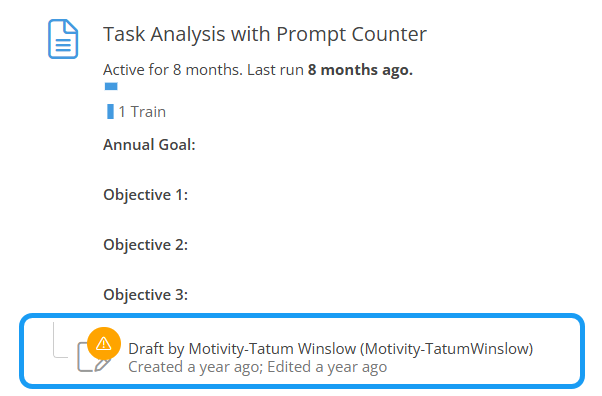
If you are the one with the outdated draft, you will see the following warning upon opening the program editor: "This draft is outdated. The program was updated since creating this draft. Updating now will overwrite the current program, which could remove existing targets and make them inaccessible or unusable."

To address this warning, discard the outdated draft by selecting the "Discard Draft" icon in the right-hand side of the screen.
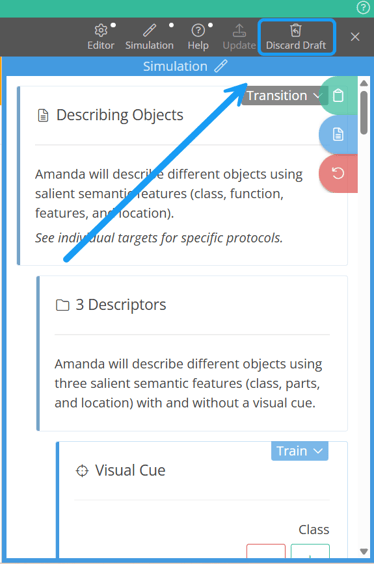
Now that the outdated draft is discarded, you may re-open the editor without issue.
Multiple Drafts
If a draft already exists when you open the editor, you will see the following warning: "N other member(s) has drafts in progress for this program. Updating now will make other drafts outdated. See other drafts."
Click on the text "See other drafts" to view a list of other existing drafts and who they belong to.

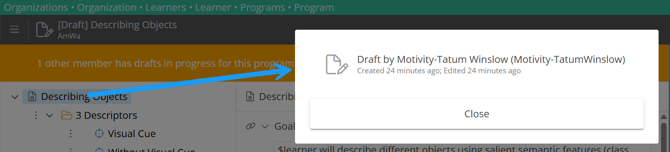
It is best practice to communicate with the other member(s) to determine which draft(s) need to be discarded and which will be used for udpates.
Note: You cannot edit, open, or discard another individual's draft. You also cannot view the contents of their draft. This makes communication within teams regarding drafts paramount.
Last Updated: 1/29/2026 by Tatum Winslow