
Overview
This article explains how the AI Coach in the Patient Scheduler surfaces insights the moment you select a patient. You'll learn what information is displayed, how to use the "Why" button for a deeper breakdown, and how this tool helps your team act faster. Whether you're scheduling one patient or managing a full caseload, this feature is designed to keep you informed at a glance.
Why This Matters
Staying on top of authorization utilization across multiple patients can be time-consuming. The updated AI Coach removes the guesswork by immediately telling you where a patient stands — without requiring you to navigate across multiple screens or manually piece together data. This helps your scheduling team prioritize patients who are at risk of falling behind on their authorized hours, reducing missed services and supporting better outcomes.
How to Use the AI Coach Patient-Level Insights
- Navigate to Scheduler → Patient View
- Select a patient from the list
- Review the AI Coach summary that appears — this will show you the patient's overall utilization across all authorizations, their scheduling pace (on track, behind, or ahead), and suggested next actions
- Click the "Why" button to open a side panel with an authorization-by-authorization breakdown, including each authorization's name, ID, and detailed status
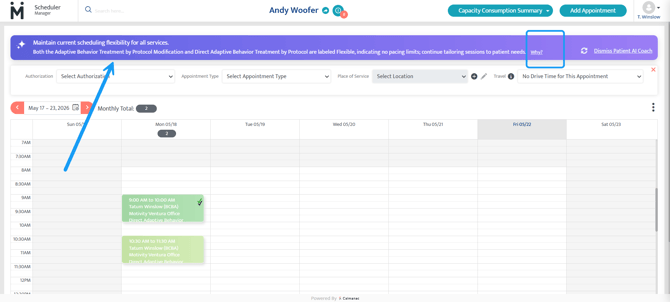
- Use the AI's recommendations to decide on your next scheduling action — for example, adding sessions for an under-utilized authorization
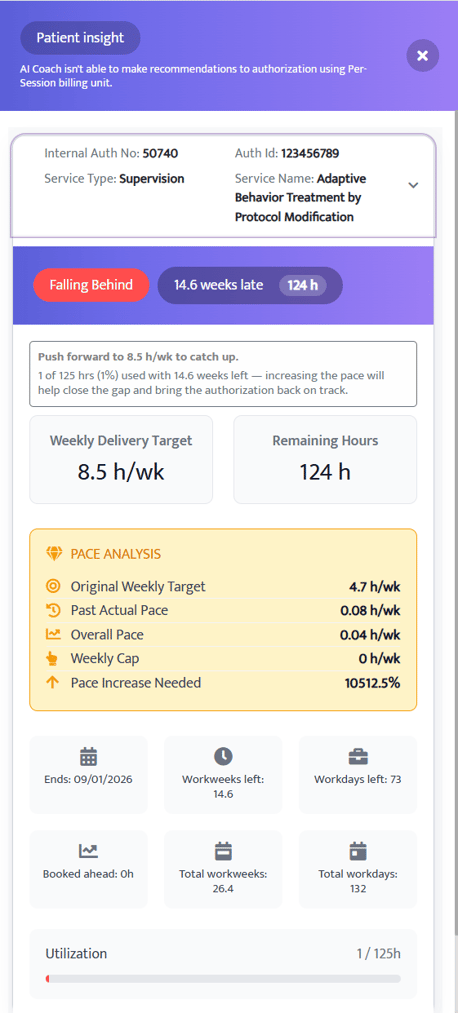
Tip: The "Why" panel is especially helpful when a patient has multiple active authorizations and you need to understand which one needs attention most urgently.
Important Things to Know
- The cumulative summary is triggered automatically when you select a patient — no additional steps are needed.
- The AI Coach is available in the Patient Scheduler view.
- Beta Status: This feature is currently in Beta. If you would like to integrate this feature into your PM instance, reach out to your Customer Success Manager for more information!
Last Updated: 5/21/26 by Tatum Winslow