
Note: To access this feature, "edit" must be toggled on for funding source under the "patients" domain within a designated access level must be turned on. Additionally before adding the patient authorization, patient details, caregiver, and the funding source are required to be added to the patients profile.
Steps to Adding a Patient Authorization
1. After a funding source has been added, authorizations can be added.
2. Click "+ Authorization"
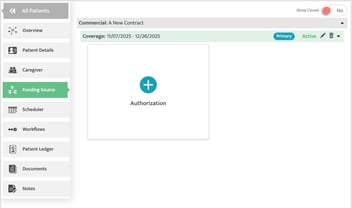
3. Click "+ Authorization," a new screen will appear to enter patient authorization information.
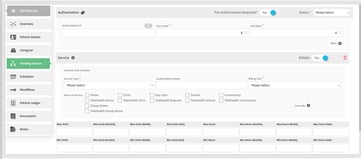
3a. Identify if pre-authorization is required and status (i.e., closed/active)

3b. Add authorization ID and the start/end date (required)

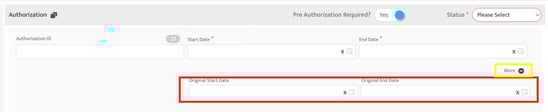
3b. Optional: Select "more" to add original start and end date
3c. Identify the service type and billing unit (both required). It is optional to add the authorization name

3d. Identify if the service type is billable or non-billable by toggling from Yes to No

3e. Identify all place of services related to the service type

3f. Add max/min units, max/min units monthly/weekly/daily, max hours, max hours monthly/weekly/daily

3g. Click "Add Service" to continue adding service codes
3h. Once complete with adding codes/types, click "Save"

Last Updated: 11/7/2025 by Kasey Kramer