
Overview
This guide will walk you through the steps to set up a new office, including key details like address, time zone, and business hours. By the end, you’ll have a fully functional office location ready to use in the system.
Why this is useful: Keeping your office locations up to date ensures smooth scheduling, accurate billing, and clear communication across your team.
Steps to Add a New Office Location
-
Navigate to the Admin Module
This is where all your office management begins. -
Click Add Office
Click the "Add Office" button in the top right. Clicking it will open a new form where you can enter all the relevant details for your office.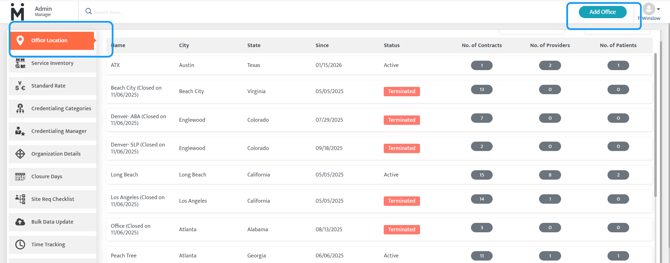
- Input the Name of the Office
-
Set the Office Status
Choose the status for your office: Active if the location is currently in use, or Terminated if it is no longer operational. -
Enter the Address Details
Fill in the street address, city, state, and ZIP code. Accuracy here ensures your office appears correctly in scheduling and reports. -
Select the State and Time Zone
Make sure to select the correct state and time zone. This is crucial for scheduling appointments and ensuring your business hours align with local time. -
Configure Business Hours
Define your office’s start and end times for each day it operates. If your hours vary by day, enter each day individually.-
Weekend and Non-Business Hour Rates: To ensure accurate billing and maximize rates, define both a start and end time for your office hours; any day without hours will default to the weekend rate, and appointments outside your defined hours will be billed at non-business hour rates.
-
-
Add Any Additional Contact Information
You can include phone numbers, emails, or other relevant information. This makes it easier for team members or patients to contact the office if needed. -
Save the Office Location
Click "Save". Double-check that all required fields are filled and accurate. This is denoted by a red asterisk.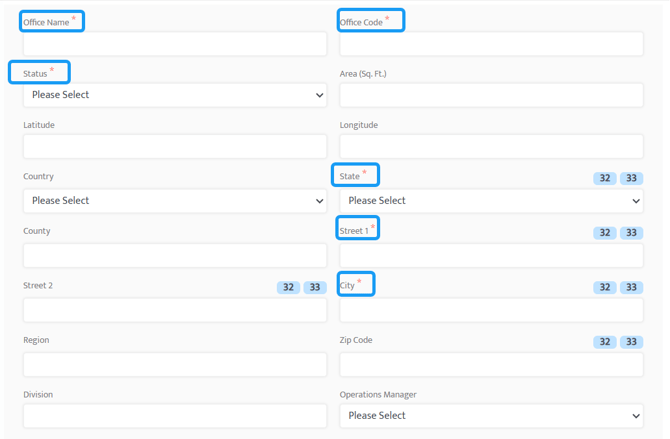
-
Confirm and Exit
Once saved, review the office location in the system to make sure everything appears correctly.
Tips
-
Double-check your time zone and business hours!
-
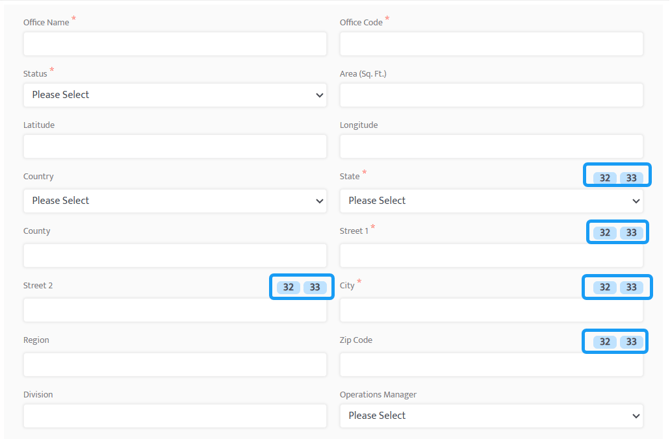
Any field with a number in a light blue box corresponds directly to a field on the CMS-1500 billing form. This ensures the information you enter in Motivity maps correctly to the official form used to submit claims, keeping your billing accurate and hassle-free.
Last Updated: 1/27/2026 by Amanda Kelly