
Overview:
The Admin Module in Motivity provides centralized tools for managing your organization's settings and configurations. Access to this module is limited to users with the appropriate access levels to ensure that only designated staff can make critical organizational changes.
Admin Module:
Find the Admin Module by hovering over the Motivity 'M' in top right corner, and navigating down to where you see "Admin".

From there, you will find all information domains with the Admin Module. Below is a brief descriptor of what you will find within each.
Domain Descriptions
1. Office Location - Manage your organization’s physical locations, including address, contact information, and operating details. You can add multiple offices and keep all location information up to date in one central place.
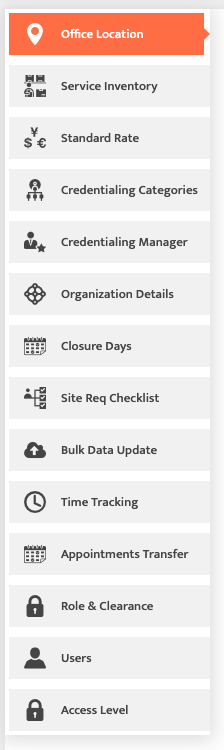
2. Service Inventory - Add and manage the services your organization provides, including CPT billing codes and descriptions. This ensures all services are accurately tracked and available for scheduling and billing.
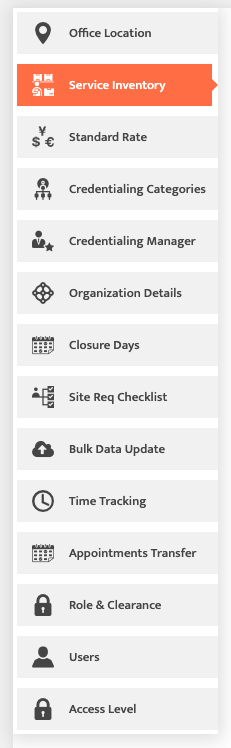
3. Standard Rate - Set and manage rates for private pay clients (if applicable.) If all your patients fall under contracts with payors (Commercial, Medicaid, Military, etc.), leave this section blank. To learn more about adding contract rates, see Rates and Modifiers.
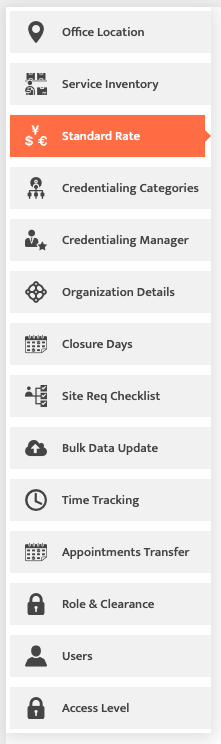
4. Credentialing Categories - Create and manage credentialing categories for different roles within your organization, such as SLPs or BCBAs. These categories help standardize requirements and track credentialing needs for each position.
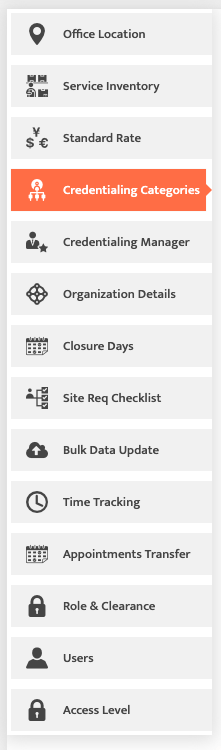
5. Credentialing Manager - Add and manage the contact information for your organization’s credentialing manager. This ensures there is a clear point of contact for all credentialing-related tasks and communications.
6. Organization Details - Enter and maintain key information about your organization, such as name, tax ID, and contact details. Accurate information is essential, as it appears on claims and other official documents.
7. Closure Dates - Set and manage the days your organization will be closed, such as holidays or special events. These dates are reflected in the schedule to prevent appointments from being added on closed days.
8. Site Requirement Checklist - Create and manage a list of items your organization needs to meet payor site-specific requirements. This checklist helps ensure compliance and tracks which items are needed for each payor.
9. Time Tracking - Monitor and manage employee hours, including pending, approved, and finalized entries. Approvals are completed by reviewing submitted hours and advancing them through the workflow.
10. Appointment Transfer - Easily move appointments from an old authorization to a new one when a patient’s insurance changes.
Note: An active authorization must exist on the patient’s profile for the schedule you want to transfer before using this feature.
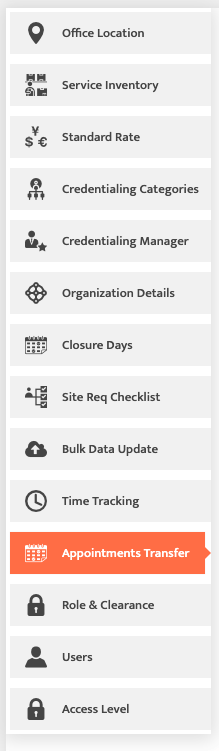
11. Role and Clearance - Create custom roles for your team and assign specific permissions to control access within the platform. This ensures each user has the appropriate level of access based on their responsibilities.
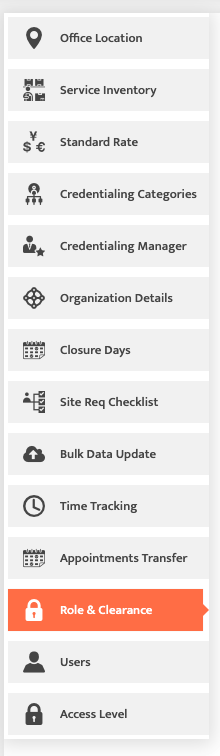
12. Users - Manage all users within your organization, including adding new administrative users, sending login credentials, and deactivating accounts as needed. This central hub ensures your team’s access is always up to date and secure.
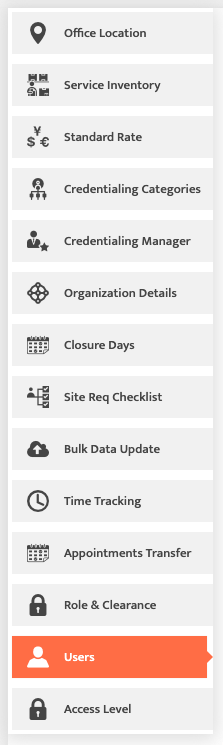
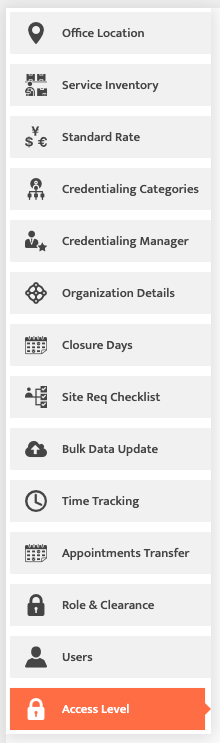
13. Access Level - Configure and customize the permission levels assigned to each role within your organization. You can modify existing access levels or create new ones to ensure users have the appropriate permissions throughout the system.
Last Updated: 1/27/2026 by Madeline Roznos