
This article applies to organization administrators who manage payor requirements and site setup.
Overview:
The Site Checklist helps you track and document site-specific payor requirements (ex: emergency routes clearly indicated, ADA compliance, secure storage of documentation, etc) for your organization. Completing this list ensures compliance, reduces the risk of payment delays or audits, and provides a clear roadmap for operational readiness. If your payors do not have site-specific requirements, you may skip this section.How to Manage your Site Checklist:
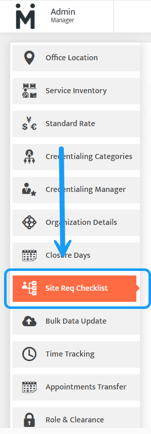
1. Navigating to your Site Checklist: Find the "Admin" module and select "Site Req Checklist"
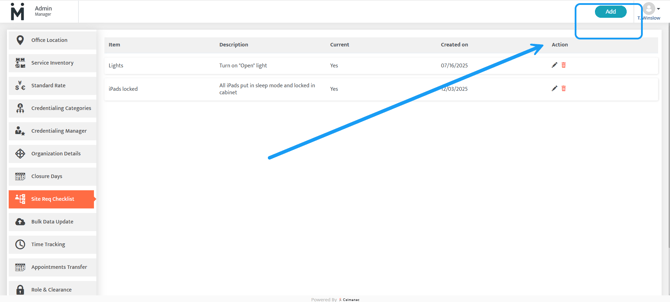
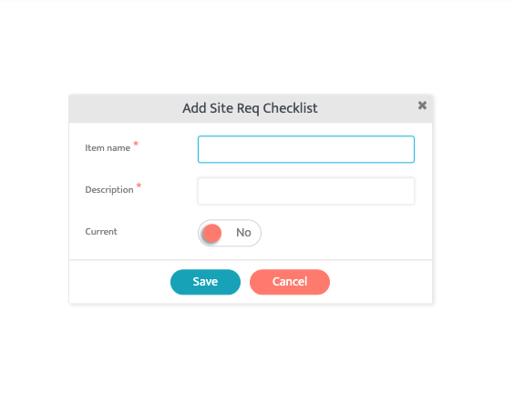
2. Adding Checklist Items: Use the 'Add' button to include the items your organization needs to meet payor requirements. Switch the "Current" toggle to "Yes" if the item is currently required by a payor.
Note: Checklist items are specific to the insurance you work with. Be sure to review guidance from each payor to include all requirements that apply to your clinic.
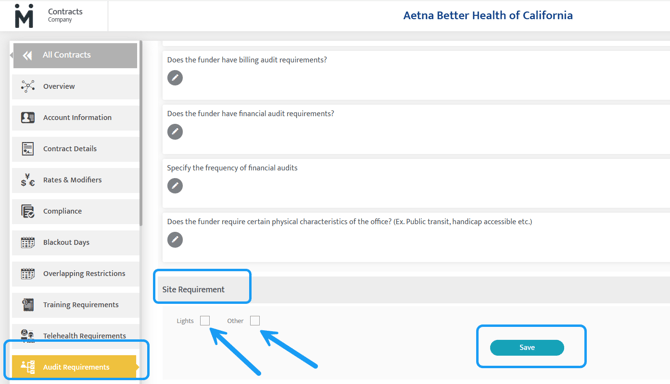
3. Using the Checklist: Items added here will appear in the "Audit Requirements" section for every payor record within the Contract module. Simply select the checkboxes to indicate which site requirements apply to each payor, then press 'Save'.
Last updated: January 27, 2026 by Madeline Roznos