
Overview
This article explains how to add and manage users with administrative access in Motivity. Learn how to create new administrative accounts, send new administrative users login credentials to Motivity, update their details, and deactivate users as needed. (Providers, such as BCBAs, RBT/BTs, etc., should be added through the Provider module.)
Adding a New Administrative User
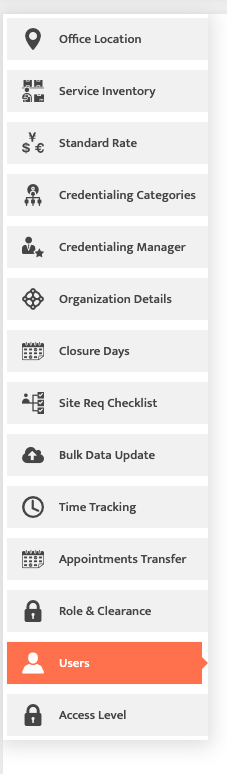
1. Navigate to the Admin tab and then select Users
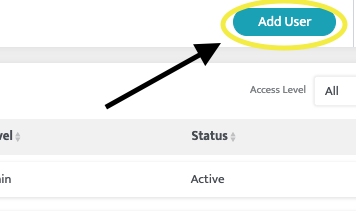
2. Click on "Add User" and fill in the necessary details, such as name, email, office location(s), and access level.
3. The system will automatically send an invitation to your new user. For this reason the toggle is set to "No" and not adjustable at this time.
The system WILL send an invitation to the user login credentials via email so they can gain access to the platform.
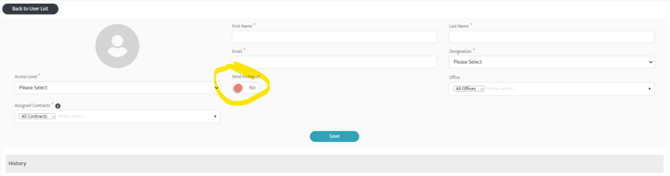
Note: The invitation will not be sent until all information has been filled in and you hit "Save".
Note: Providers added through the Provider Module will automatically appear within the user list.
Managing Existing Users
Editing Current User's Details
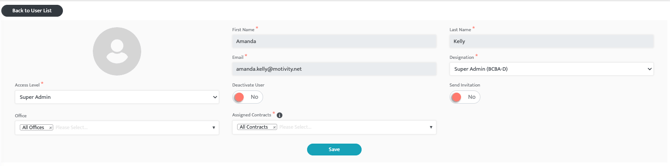
To edit a user's details, select the user from the list.
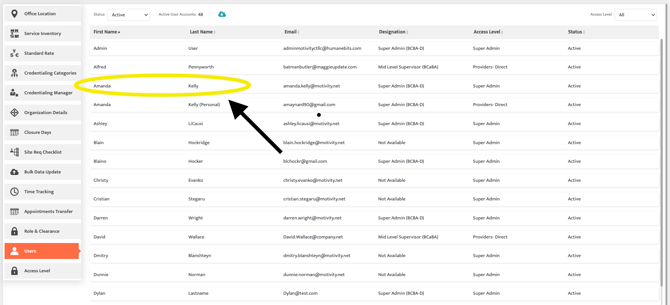
This will take you to the user's detail page. Update any information needed and select "Save".
Deactivating a User
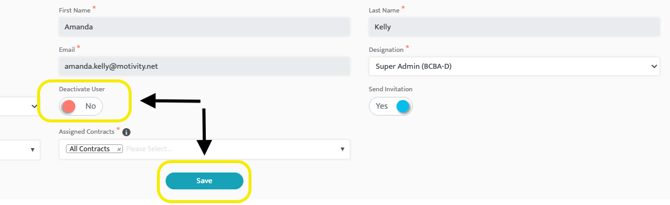
You can also deactivate a user from their detail page. To do this, toggle Deactivate User to "Yes" and then select "Save".
Note: If you are deactivating a provider, you must first deactivate them in the provider module. Deactivating a user in PM does not deactivate them in Clinical. You will need to deactivate the user in Clinical as well.
Important: Adding a user in the Admin module does not create an account for them in Motivity Clinical. To grant Clinical access, the user must be added as a Provider or manually added within Clinical.
See also: How to Add a Provider, Managing Provider Status: Deactivation & Reactivation
Last updated: 2/3/26 by Dr. Katie Palmer