
While Motivity is configured so that Patient profiles created in PM are automatically linked to and created in Clinical, the Caregiver data associated with a Patient in PM are data (not users). They exist only in association with their Patient.
Therefore:
- Caregiver Members and User Accounts only exist and are managed exclusively in the Clinical Module.
- Caregivers must be created/invited in Cinical using the +Member button and adding the member type = Caregiver.
- Adding a Caregiver as a Learner Type instructions can be found here .
Creating a Caregiver Member
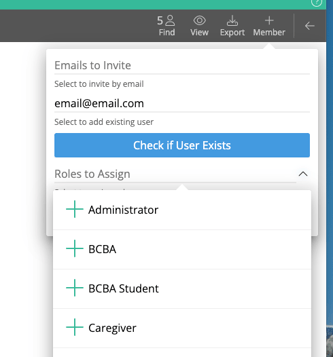
You will follow this process to create a member and invite them as a Caregiver to Motivity
- click "Members"
- select the "+Member" button at the top right
- type their email address in the top line
- be sure that it is spelled correctly!
- when you finish typing the email, a + button will appear
- click the + button to add the email
- Click "+Caregiver" to assign the Caregiver Role using the Role dropdown
- select "Invite"
If the Caregiver is already a Member in Clinical
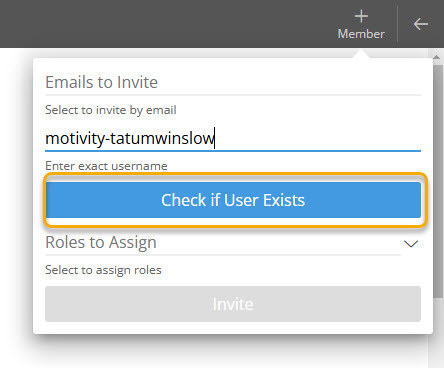
You will follow this process to invite an existing Caregiver member to Motivity.
- click "Members"
- select the "+Member" button at the top right
- type their username in the second line
- be sure that it is spelled correctly!
- click "Check if User Exists" button
- if you entered the username correctly and the user profile already exists in Motivty, you will see a pop-up with the username and first and last name
- click the + button
- assign a Role using the dropdown
- select "Invite"
Last updated by Dr. Katie Palmer on 1/20/26