
This article is most relevant to billers or those who may be helping their organization with billing
Introduction
Batches in Motivity are groups of claims that can be processed together for efficiency.
A batch can have claims from multiple payors. You can process it all in the same bundle as long as you are going to process it all together through the clearing house.
Prerequisites
To generate a batch, the access to the Billing Module must be turned on, as well as the "Generate Batch" and "Un-billed Services" Permissions

Generating a Batch
-Hover over the Motivity icon on top left corner and click on the billing menu to access this page 
-Then click the first category on the left called "Un-billed Services"
-Users can filter services based on payers, funding sources, and date ranges. Once selected, you can create a batch that groups unbilled services for further processing. Only patients with unbilled services will be shown, ensuring focus on outstanding claims.
To generate a batch:- Choose a date range
- By default, the date range shows the last 12 months, but users can adjust this to any desired range.

- By default, the date range shows the last 12 months, but users can adjust this to any desired range.
- Choose the unbilled services you would like to include in a batch
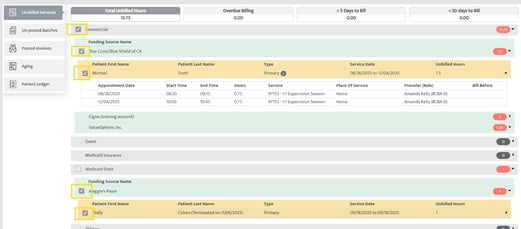
Clicking on a funding source expands the section to show you the payor (contract) names within it, further clicking on the payor name will show you the specific patient’s names. You can select one or more patients & payors. - Click "Generate Batch"
This button stays ‘greyed out’ until you select the patient/payers to be added in the batch.

Once the selections are made, this button is activated. You can click on it to proceed to the next step of viewing invoice/error data for the batch you just generated.

- A "batch" will be created that will show up in "unposted batches." The system will assign a unique ID to the batch, making it easy to track and manage.
Notes & Tips
-Any claims/invoices which are not to be processed through clearing house or difference clearing houses/methods should not be mixed together.
-Note that this list will only show you the patients with unbilled services. You will not see the patient’s name here if there aren’t any pending unbilled services within the date range you have selected.
Last Updated: 12/7/2025 by Blain Hockridge