
Overview
This document outlines the step-by-step process for resubmitting claims after editing existing appointments or adding appointments to a claim within the Collections module.
Editing Appointments and Resubmitting Claims
Step 1: Navigate to the previously billed Claim
- Go to "Collections" and open the claim that needs to be resubmitted.
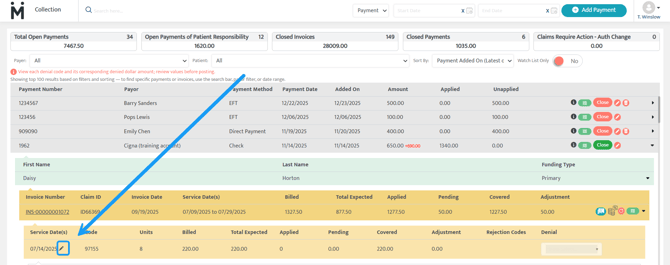
- Click on the invoice line to expand the invoices.
- Select the black pencil icon to begin editing.
Step 2: Open Appointment Selection
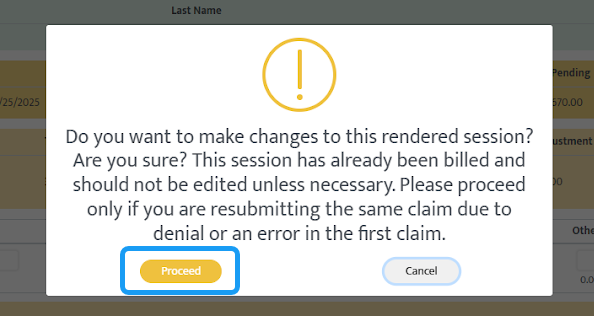
- A confirmation message will appear.
- Select "Proceed" to open the Appointments popup.
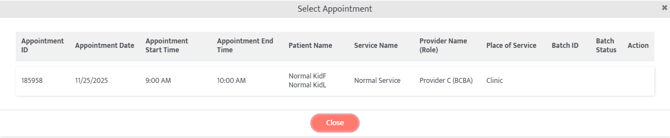
- The popup displays all appointments associated with that invoice line.
Step 3: Edit the Required Appointment
- Select the appointment you want to modify. (see image above)
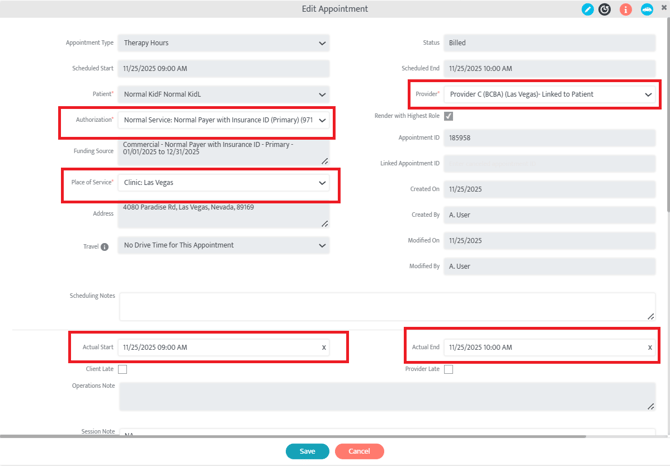
- The Edit Appointment popup will open.
- Select the blue pencil icon inside the popup to enable editing for appointment fields.
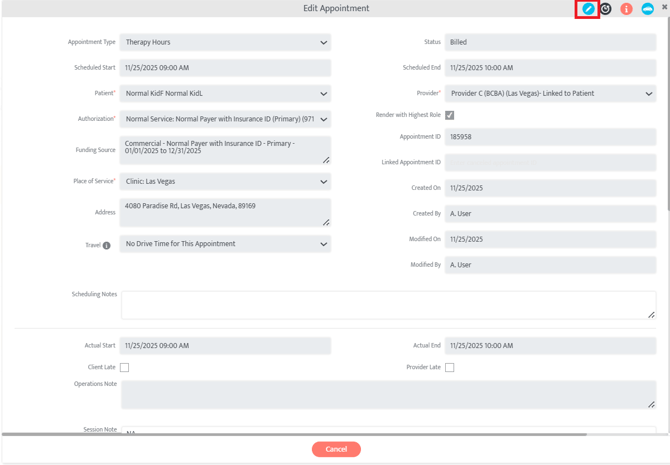
Editable Fields Include:
- Authorization
- (Only billable authorizations for the same payer and service are available)
- Place of Service
- Provider
- Actual Start Time
- Actual End Time
Step 4: Save and Resubmit
- After making the necessary updates, select "Save".
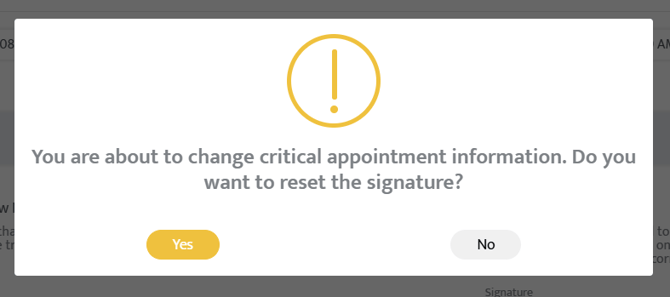
- You will see a pop up asking if you want to reset the provider signature.
- Selecting "Yes" will remove the provider's signature from the appointment.
- Selecting "No" will not change the signature.
Note: The option to reset the provider signature is left up to the user.
- Once all required edits are complete, select the blue Resubmit option on the claim to generate the updated submission.

2. Adding Appointments to a Claim and Resubmitting Claims
Step 1: Navigate to the Claim
- Go to "Collections" and open the claim that needs to be resubmitted.
- Click on the invoice line to expand the invoices.
- Select the black pencil icon to begin editing.
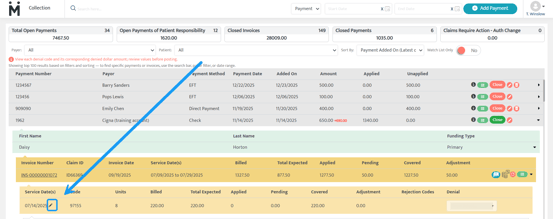
Step 2: Open Appointment Selection
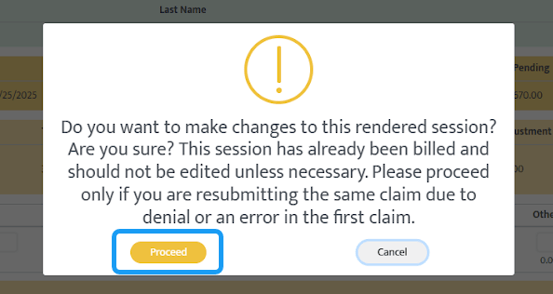
- A confirmation message will appear.
- Select "Proceed" to open the Appointments popup.
Step 3: View Available Appointments
The popup will display:
- Appointments already present on the invoice line
- Rendered appointments for the same Date of Service and same Service (this is determined by the contract settings)
- If any rendered appointment has already been billed in an unposted batch, the batch number will be shown
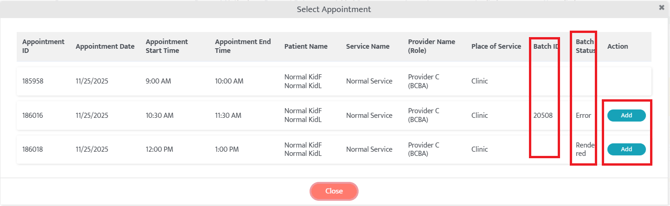
Step 4: Add Appointments
- Select Add to include the selected appointment(s) in the claim line (see image above).
- Select the popup once all required appointments have been added.
Step 5: Resubmit the Claim
- Select "Resubmit" to submit the updated claim with the added appointments. The system will automatically record the resubmission code (box 22) as “7” to indicate to the funder that there was a correction.
Last Update: 2/4/2026 by Kayla Lewis