
Overview
This article is for organizations who use ConCred to track and monitor provider enrollment in ConCred.
Provider List
The ConCred Provider Module allows organizations to view their providers, outstanding alerts, upload their certificates and track payor enrollments.
When you to navigate to the provider module, you’ll see a list of all providers assigned to your office location by default:
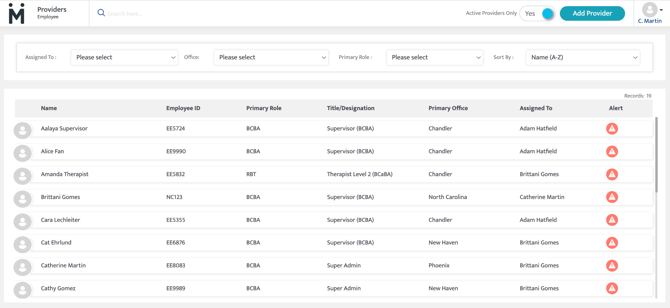
You can also filter providers by office, title, or who they are assigned to. You can click on the ‘alert’ icon to see a quick list of all the alerts within the provider's profile. 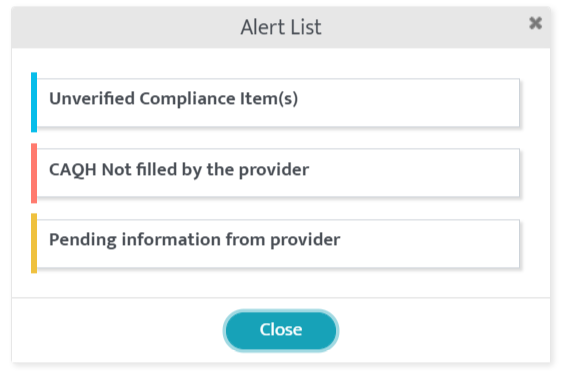
ConCred: Provider Overview
The Provider Overview tab shows a high level overview of a providers profile, including the payors they are enrolled in (by office if applicable), the number of service locations they are connected to, as well as any pending enrollment and compliance requirements.
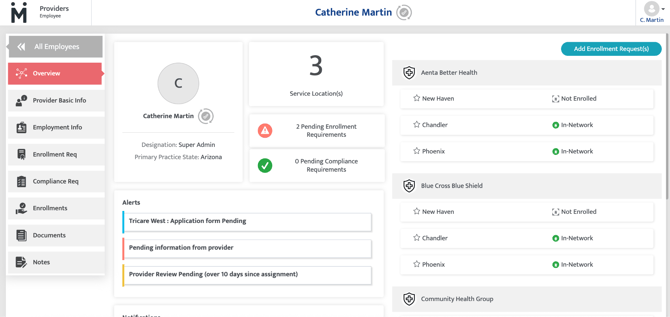
If enrollment or compliance requirements are updated, Motivity will sync by the end of the day. To override this timeline, click the checkmark next to the providers name  to force a compliance check within the next 15 minutes.
ConCred: Provider Basic Information
Within the Provider Basic Info tab, a number of fields are required, whereas others are optional.
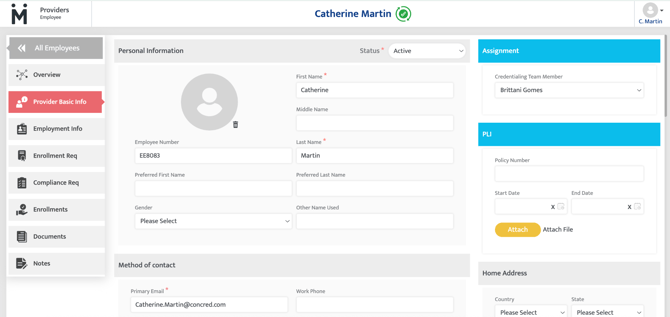
Take note of the following fields:
Status
Only active employees will appear on the dashboard and other reports.
You will be able to assign a provider to any work auth or add their schedule if they are active.
Assignment
A provider can be assigned to any specific credentialing team member, so that the responsible team member is able to see all the alerts and notifications associated with the providers assigned to them exclusively on their dashboard. This is not a mandatory function.
If a provider is not assigned to any credentialing team member then all the associated alerts can be seen in an “unassigned” pool of alerts. Which means that there isn’t any specific team member who is in charge of resolving the alerts in the provider's profile, however everyone who has access to the provider can view it and take necessary actions.
Note: You will be able to assign any user added from admin here. Make sure to assign only the team members who have access to the credentialing module.
Professional Liability Insurance (PLI)
PLI number and start/end date could be the same for all providers. It is a non-mandatory field. In case additional policy details are required to be accessed by the provider, you can attach a file here.
These details will be accessible on the provider portal for providers.
Social Security Number (SSN)
This is a highly secured field. Only the person with appropriate access will be able to see the ‘eye’ icon to view the SSN.
Access based- copy button is provided here so that if you have to use the SSN on any other forms or portal, you are able to copy it directly instead of typing it, this is considering that the field itself is locked.
Job Title/Designation
Job Titles are managed in the Admin module.
Compensation
This information can be only added/edited/viewed by the users who have access to the ‘Compensation’ section.
This is not mandatory information. It connects to cost and margin reports (Motivity PM), however it does not have direct effect on any other functionality in the system.
ConCred: Employment Info
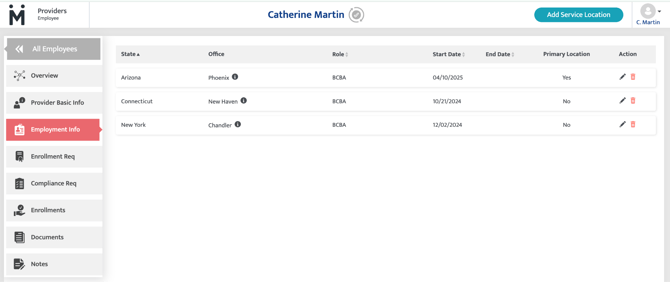
Providers are able to be assigned to more than one location, and may have a different role at various locations. 
Clicking on the info icon in front of the location will show you the office location information (address, phone number, office hours).
Add Service Location
You can add a new service location by clicking on the ‘Add Service Location’ button in the top right corner of this page.
This new location will be added to the list on the Employment Info Page. As soon as a new location is added, a potential list of payors will be also added on the Enrollment page and hence the corresponding Enrollment Requirement tiles will also start reflecting.
Note: Aside from adding a new location, this feature is also mainly used to add a new role on the existing location. Example: You might have a BCBA who is not licensed in a certain state, so although they will be added as a BCBA primarily, they might work/bill as a behavior technician temporarily, hence you will need to add them as a behavior technician here for the same location as BCBA.
Edit/Delete Service location
You can edit or delete any service location by clicking on the edit or delete icons in the action column of the locations table.
If you delete any location/role for which enrollment completes for a certain payor, then that enrollment information will remain as is in the Enrollments menu, it will not be removed.
ConCred: Enrollment Req
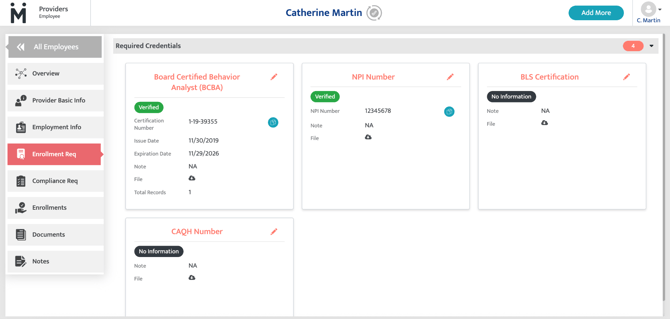
Compliance Items Required by the Payors
Health care funders require very specific information to complete Enrollment in their network. This varies from funder to funder, based on service location (specially state) and role of the provider.
ConCred has mapping of all the requirements by different funders and based on that this page lists all the required compliance items by the payors who this provider will be working with.
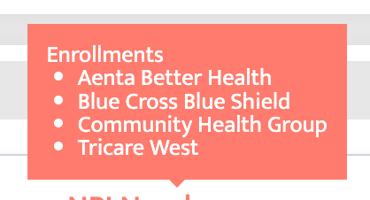
Enrollment tiles are automatically added from the Rolewise criteria set up in the Admin Module and the Contract Set Up, however if additional enrollments are required they can be manually by clicking “add more” in the top right corner.
ConCred: Compliance Req
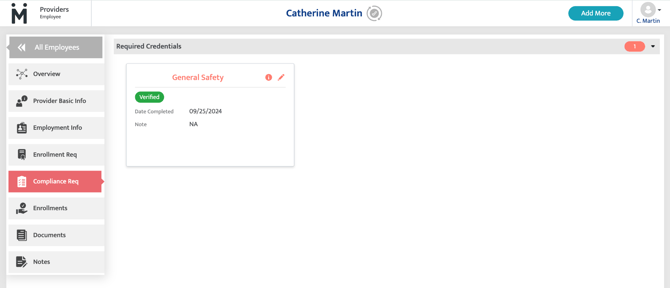
Compliance requirements differ from enrollment requirements in their admin module set up. Generally speaking, these do not relate to a payor requirement to be in network but might be required to remain in compliance (for example a safety training or an annual bloodborne pathogens training) with the payors or organization.
ConCred: Enrollments
A main functionality of ConCred is to track the provider enrollment across payors and locations.
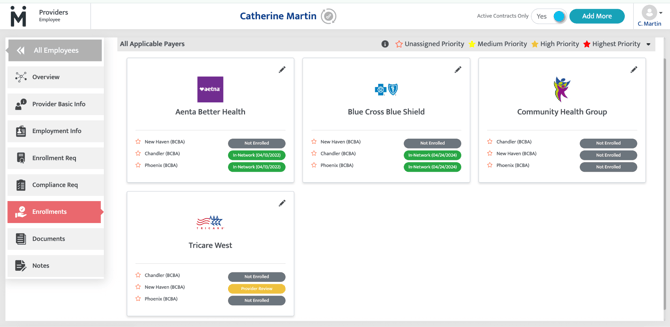
For payors to automatically generate under Enrollments, they need to be configured under Contracts> Credentialing Requirements:
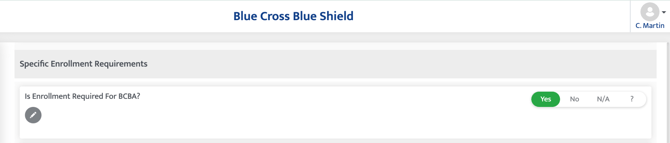
Note- this question will need to be answered “yes” for all roles that require enrollment with each payor.
If a payor needs to be manually added, simply click “Add More” in the top right corner.
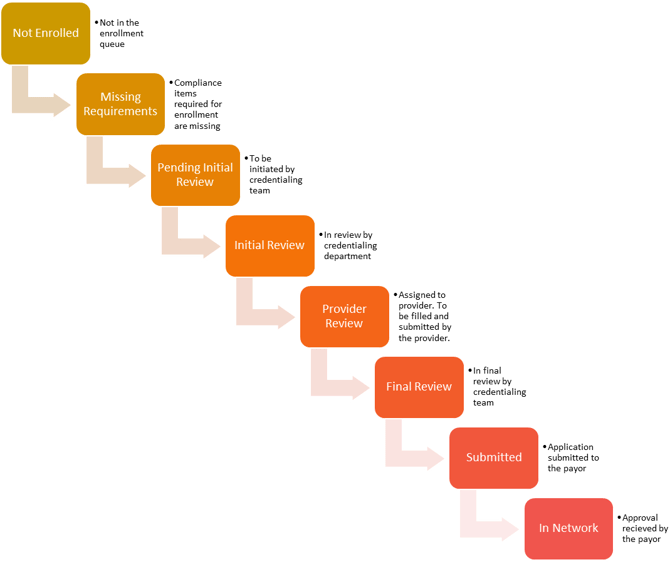
Once a payor tile is in the providers Enrollments screen, organizations can track their status:
Enrollment Details
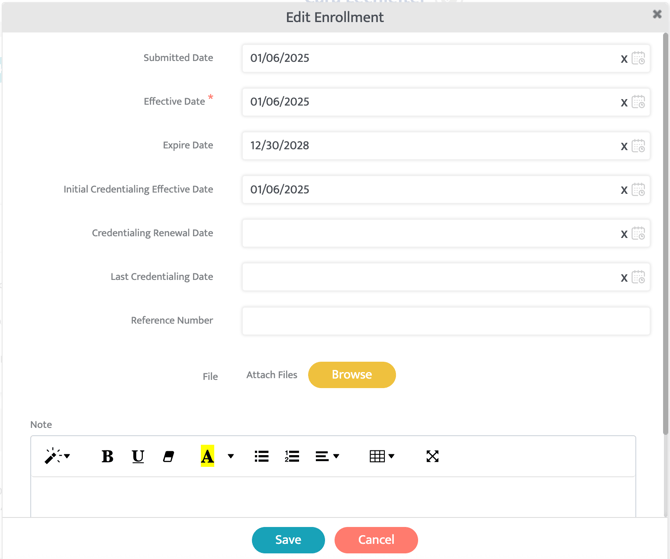
Clicking on the ‘pencil icon’ on Payor on Enrollment page will take you to the Enrollment Details page.
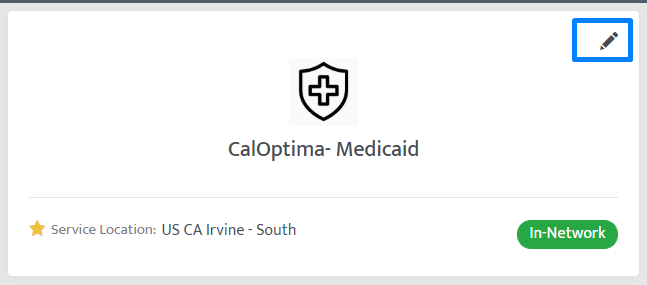
On the Enrollment Details page, you can review the status of the Enrollment for each service location within the selected payor.
Enrollment Status Workflow
View provider’s notes
You can view the notes sent by the credentialing team on the Enrollment details page under the timeline section. You can reply to the note by clicking on ‘reply’ button under the provider’s note. These notes are payor specific.
Last Updated 12/8/25 by Maggie Yost