
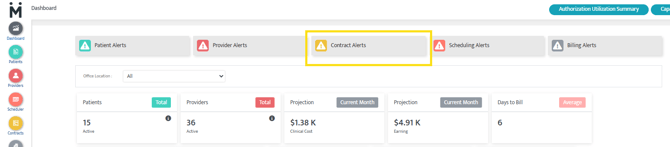
The Motivity Dashboard provides a high-level overview of your organization’s month and highlights any alerts requiring action. One of the key alert areas is Contract Alerts, which helps you track issues related to contract setup, rates, compliance, and credentialing. Using these alerts ensures timely resolution and accurate contract management.
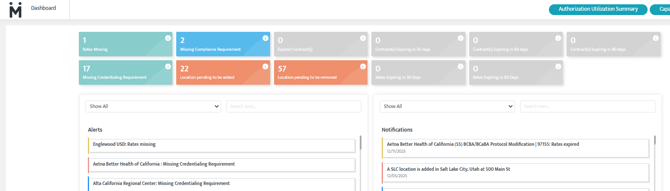
Click on the Contract Alerts tile at the top of the Dashboard to see all current alerts related to your contracts. The section is divided into 11 alert types:
-
Rates Missing
Shows contracts that do not have any active rates. -
Expired Rates
Shows contracts where previously active rates have expired. -
Contracts Expiring in 90 Days
Active contracts with an expiration date between 61–90 days away. -
Contracts Expiring in 60 Days
Active contracts with an expiration date between 31–60 days away. -
Contracts Expiring in 30 Days
Active contracts with an expiration date between 0–30 days away. -
Expired Contracts
Contracts that have passed their renewal date but are still marked as active. -
Missing Credentialing Requirements
Contracts where enrollment requirements are not specified for all configured roles. -
Missing Compliance Requirements
Contracts where enrollment is required for a clinical role but compliance requirements are not added. -
Compliance End Date Reached
Contracts where the compliance end date has been reached.
Working Through Alerts
-
Click the desired alert title to see detailed information about the issue.
-
Click the blue arrow next to an alert to be redirected directly to the related record for quick resolution.
-
Alerts are removed automatically once the corresponding criteria are fulfilled.
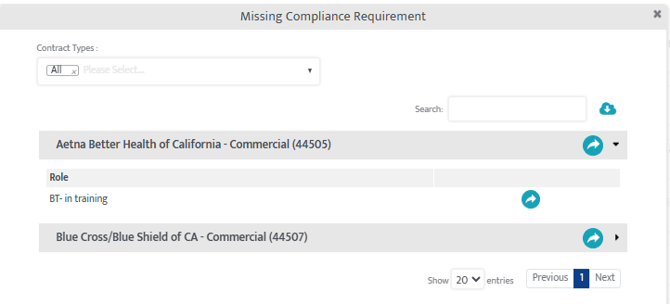
Alerts & Notifications List
The list displayed at the bottom of the Dashboard shows a running record of all contract alerts and notifications in the system.
-
Alerts require immediate or frequent action.
-
Notifications are informational and do not require any action.
Filtering and Searching Alerts & Notifications
- Filter alerts and notifications by type using the dropdown menu, which is automatically set to Show All.
- Use the search bar to quickly locate a specific contract alert or notification.
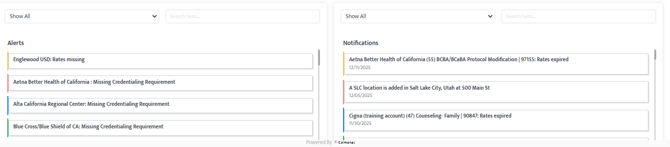
Types of Notifications
-
New Location Added – When a new location is added to the system.
-
Rate Expired – When a rate reaches its expiration date.
-
Compliance End Date Reached – When any compliance item reaches its end date.
-
New Contract Created – When a new contract is added to the system.
-
Location Closed – When a location is closed.
-
New Service Item Added – When a new service item is added to the system.
Last Updated: 12/19/2025 by Tiffany McLean