
This section is used to store and manage all documents related to the contract, including the contract itself, single case agreements, email correspondence, and any other supporting documentation.
Within the Contracts module, documents can be uploaded in two locations:
Enrollment Documents and Documents. Any files added to the Enrollment Documents area will also automatically appear in the Documents tab for easy access.
Adding Documents
To add a document, click the Browse Here button or drag and drop the desired file into the upload area. You will then be prompted to enter the file type, name, date, and any tags, making it easier to locate the document later.
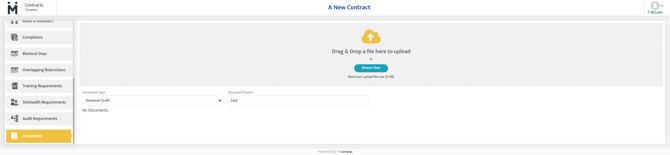
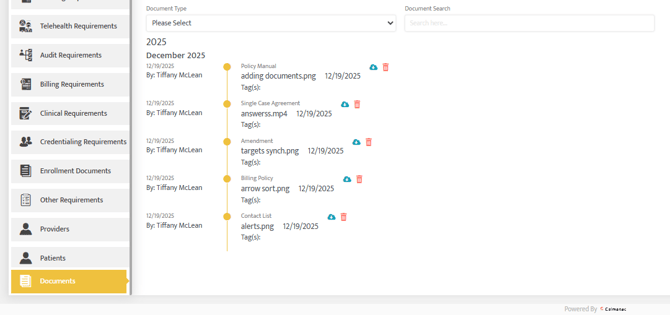
As documents are uploaded, a timeline is generated that displays each document along with the date it was added, providing a clear history of contract-related files.
You can quickly locate documents by using the document search bar to search by document name or by applying the document type filter to view specific document types.
In the timeline, you can click the blue Download button to re-download any document. You can also click the red Trash icon to delete documents that are no longer needed.
Last Updated: 12/19/2025 by Tiffany McLean