
The Notes section in the Contracts module allows you to document important details while creating or updating insurance contracts. This helps maintain clarity, continuity, and internal alignment when managing contracts over time.
Step 1: Open the Contract
-
Navigate to Contracts from the main menu.
-
Open the insurance contract you want to update.
Step 2: Add Notes
-
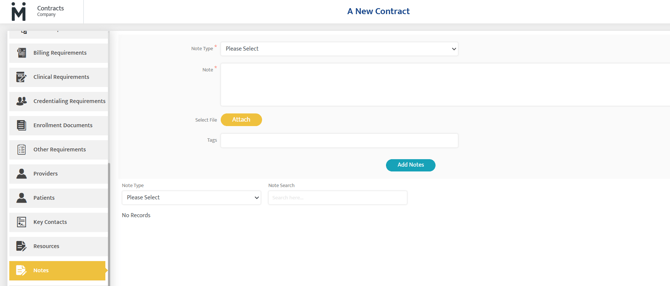
Locate the Notes section within the contract.
- Enter the note type such as customer information, rates, rules or compliance.
-
Enter detailed notes in note textbox.
-
Include dates and payer details when applicable
-
Keep notes concise and professional
-
Update notes whenever contract changes are made
-
Do not include PHI or sensitive data
-
- Click Attach file if you desire to add any files into your note.
- Add tags into the note to help you filter and search through all entered notes.
-
Click Add Note.
Step 3: Search and Review Notes
Below the notes entry area, a timeline displays all notes that have been added. You can filter or search this timeline by selecting a specific note type or by searching for keywords or tags that were previously added to a note.
Last Updated: 12/18/2025 by TiffanyMcLean