
Overview
Motivity’s Drive Time and Mileage tool provides real-time visibility into travel logistics between scheduled sessions. For organizations that track travel reimbursement or commute times, this feature automatically calculates and displays estimated distances and durations directly within the provider’s schedule. This ensures that staff have the information they need to arrive on time and accurately report their travel data.
Adding Drive Time and Mileage
Drive time can be added while creating an appointment.
-
Create Appointment: Start by adding an appointment on either the Provider or Patient schedule.
-
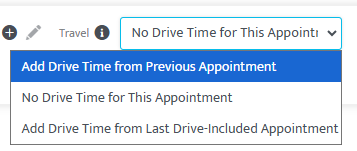
Select Travel Logic: In the drive time dropdown menu, select one of the following:
-
Add drive time from previous appointment: Calculates travel from the appointment immediately preceding this one.
-
Add drive time from last drive-included appointment: Skips non-travel entries to calculate from the last relevant location.
-
-
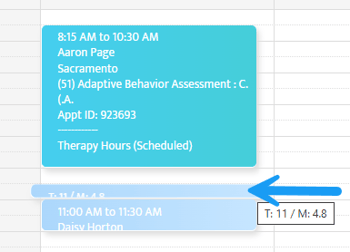
Automatic Calculation: Motivity will automatically calculate the distance and duration, adding a "travel block" to the Provider's schedule.
-
Finalize: Complete the appointment details and click Save.
Note: Travel blocks are only visible on the Provider Schedule view. If you add an appointment from the Patient view, you must switch to the Provider view to see the generated drive time.
Editing Drive Time and Mileage
If the estimated travel needs adjustment or if you need to enter finalized data, follow these steps:
-
Select the appointment and click Appointment Details.
-
Click the Light Blue Car Icon in the top-right corner of the pop-up.

-
Modify Data: You can now edit the Estimated fields or enter Reported and Approved drive time/mileage.
-
Click Save.
Managing Recurring Appointments
When editing drive time for a recurring series, clicking Save will prompt you to choose how to apply the changes:
-
Only this appointment: (Recommended) Use this for travel between client sessions, as traffic and routes can vary daily.
-
All future appointments: Use this for fixed commutes, such as traveling from a staff member’s home to their first appointment of the day.
Note: To maintain audit accuracy, it is generally recommended to select "Only this appointment" for inter-client travel to ensure daily variations are captured correctly.
Last Updated: 2/21/26 by Tatum Winslow