What Are Designations?
Designation setup allows organizations to maintain internal job titles without impacting claims sent to payors. While Designations manage internal naming (e.g., “Clinical Supervisor,” “Case Manager,” “Senior Supervisor”), these titles may map to broader billable roles (e.g., “Supervisor/BCBA”) when claims are submitted.
Examples for clarity:
- You might employ BCBAs, but their internal title could be Case Manager.
- You can break down a role like “Supervisor” into Designation levels such as Clinical Director, Supervisor Level 1, or Supervisor Level 2 to track seniority or specialization.
- Internally, you can have all the nuance you want while payors only see a clean, simple mapped role (like “Supervisor/BCBA”).
Why this is useful:
Clear and intentional Designation setup helps your organization stay organized internally while avoiding any headaches with billing, permissions, or reporting.
Key Considerations
- Role and Designation may match… or not!
You can keep them identical or use multiple nuanced Designations under one role for cleaner internal tracking. To learn more about Roles, see this article. - Designations don’t affect payor claims.
Titles like Clinical Supervisor, Group Clinical Supervisor, and Clinical Director may all map to one payor-facing role. Payors get simplicity; you keep your internal organization.
How to Add a Designation
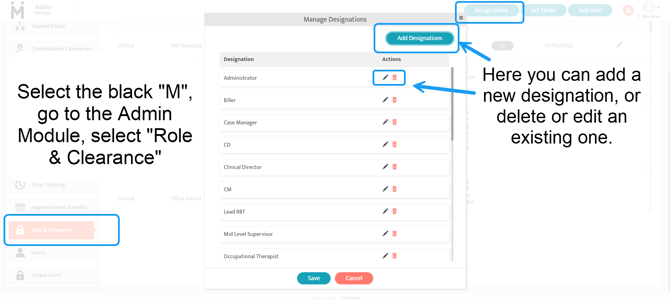
- Hover over the main menu, the black “M”.
- Select Admin.
- Select Role and Clearance.
- Select the blue Designation button in the top-right corner.
- Select Add Designation.
- Select Save.
Tip: Adding a clear, descriptive Designation can make reporting and team oversight much smoother. Future you will thank you!
How to Edit a Designation
- Hover over the main menu - the black “M”.
- Select Admin.
- Select Role and Clearance.
- Select the blue Designation button in the top-right corner.
- Select the black pencil icon next to the Designation you want to edit.
- Select Save.