
Overview
The Collections Module is your primary tool for finalizing claims, reconciling payments received via Electronic Remittance Advice (ERA), and addressing insurance denials. Think of this module as your "working list" to ensure every payment is accounted for and closed out.
The “To-do” List
The Collections module is designed to function as a working queue or to-do list. Any item displayed on this screen is an active task requiring action, such as posting a payment or addressing a denial.
The “Close” Button
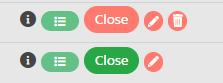
The Close Button helps you know if an item still needs to be addressed or if it is ready to be closed out.
- Red - The Close button remains red as long as a value exists in the unapplied column. This indicates that not all monetary values have been applied to the appropriate date of service. Action is required.
- Green - The Close button becomes green when the unapplied value is zero meaning all monetary values have been applied.
- Note: A green Close button may also indicate a zero dollar payment.
- Open the payment lines to verify that the unapplied amount is zero and what has been applied is correct.
- Once this is completed, the payment can be closed by selecting the green Close button.
- Closing the payment will remove it from your working list and add it to the Closed Payments box at the top of your screen.
Reconciling ERA Payments
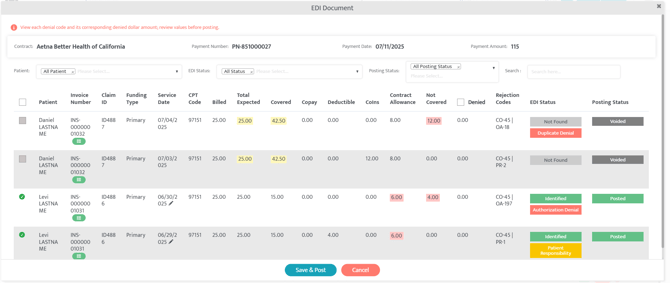
This page displays payments received through an EDI 835 file. Once an ERA enrollment has been completed via the associated clearinghouse, a black hamburger menu icon will appear to the right of the payment line. When insurance payments (ERAs) flow into Motivity from your clearinghouse, they appear with a black hamburger menu icon.

How it works: The system uses the Claim Row ID to automatically match incoming EDI 835 files to invoices with open balances. Once a match is found, the payment is instantly linked to the correct claim line for your review.
- Reviewing the ERA: Select the black hamburger icon to expand the line. The system automatically identifies payment amounts and matches them to the fields using data directly from the clearinghouse.
- Finalizing the Allocation: Review the details to ensure they match your records.
- Save and Post: You can select all lines at once or reconcile individual pieces by clicking the checkboxes and selecting “Save and Post”.
- Proceed to Clearinghouse: You will now see a pop-up with three buttons, Proceed, Proceed to Clearinghouse, and Cancel. Best practice is to select “Proceed to Clearinghouse”.
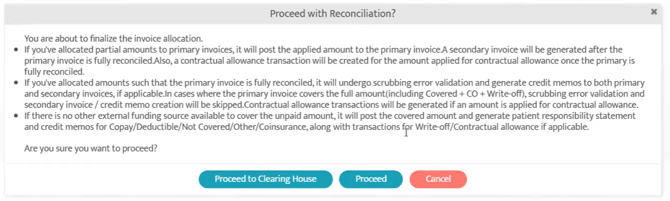
Once all amounts have been applied, the user can then select the now green "Close" option. Users can still access and review closed payments if needed by selecting either Closed Invoices or Closed payments and searching for the payment or invoice.

Manually Adding a Payment
For payers that do not support ERA or for interim payments, you can manually add a payment:
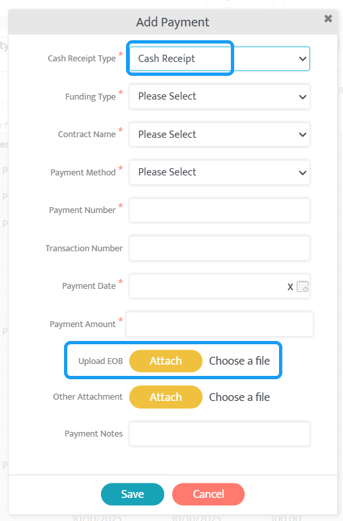
- Add Payment: Select the "Add Payment" option at the top-right of the module.

- Enter Details: Fill in the required fields (e.g. Contract Name, Payment Type, Payment Date, etc).
- Best practice for the Cash Receipt Type is to select "Cash Receipt" unless
you have the physical 835 file. In this instance choose “EDI”.
- Best practice for the Cash Receipt Type is to select "Cash Receipt" unless
- Upload EOB: It is highly recommended to upload the physical EOB for future reference. You can do this by selecting the “Attach” button in the “Upload EOB” field.
- Automatic Patient Pull: Once a payer is designated, the system automatically pulls in all patients with an open balance for that payer, so you don't have to search by claim number.
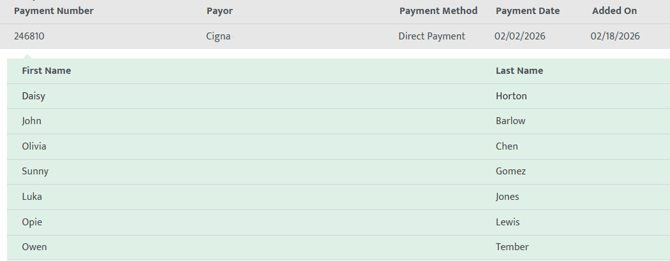
- Fill Out Fields: Enter the payment information such as the Covered (Paid) Amount, CO (Contractual Obligation/Adjustment), Copay, Deductible, or CoIns (Co-Insurance) as listed on the EOB/ERA.
- Save and Post: Select Save & Post when finished to save the payment allocation.

Working Through Denials
Motivity features a Denials Module that buckets denials by rationale (e.g., Authorization, Benefits, etc.).
- Identify the Reason: Navigate to the Denials Module and select a Denial Category (e.g., Authorization Denial) at the top of the screen. This will display all denials that fall under that category.

- Drill Down: Select payer name and then a client’s name. This will open the invoice line.
- View Claim History: Select the Green Invoice Timeline (green hamburger) icon. This shows the entire history of the claim, from submission to the final EOB (Explanation of Benefits).

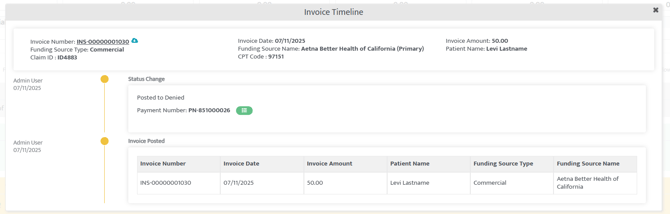
- Addressing the Denial: Once you have identified the reason for the denial, you can correct the information and resubmit.
Correcting and Resubmitting Claims
Motivity follows a "Root Cause" philosophy: you must fix the error where it originated to ensure future claims are correct. This allows you to not only fix the issue on the current claim but also ensure that future claims are not flagged for the same error.
Step 1: Fix the Root Cause
Example: If a denial occurred due to a missing modifier, do not just edit the individual appointment.
Instead:
- Navigate back to the Contract Module.
- Adjust the modifier for the specific procedure code within the Rates and Modifiers subtab.
Step 2: Send a Corrected Claim
Once the root cause is fixed, you must send a Full Corrected Claim so the payer knows to re-process the original submission.
- Orient to the Collections or Denials Module and drill down within a payment line until you see the Resubmit button.
- Select the Resubmit button.

- Automatic Data Entry: The system will automatically pull in the Original Reference Number from the initial submission if it came through on an ERA.
- Manual Data Entry: For manual payments, you will need to locate the claim number and enter it into the Original Reference Number field to ensure a successful resubmission.
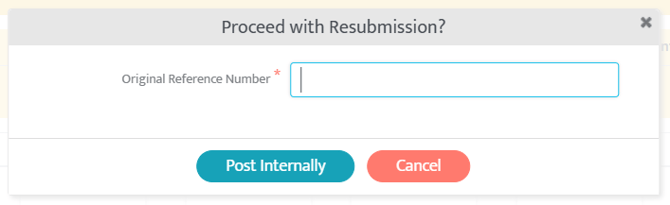
- Manual Data Entry: For manual payments, you will need to locate the claim number and enter it into the Original Reference Number field to ensure a successful resubmission.
- Resubmission Code 7: When you select Post to Clearinghouse, the system automatically places a "7" in the appropriate box on the CMS-1500 form, signifying it is a corrected claim.
After this process, you will receive clearinghouse updates and can track the newly resubmitted claim within the "Posted Invoices" subtab of the Billing module.
Last updated: 2/18/26 by Kayla Lewis and Tatum Winslow