
Step 1: Set Up Your Service Inventory
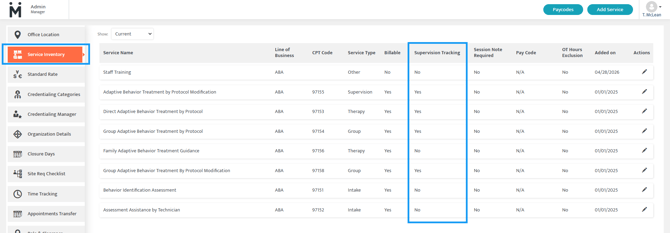
The Service Inventory in Motivity defines every service your organization provides, including both billable and non billable offerings. Configuring this list ensures scheduling, supervision tracking, workflows, and billing all align with the services you deliver.
Navigate to Service Inventory
To access the Service Inventory:
- Go to the Admin module.
- Click Service Inventory.
This page displays all services currently configured for your organization.
Configure Supervision Tracking
Within the Service Inventory, each service includes a setting called Supervision Tracking.
Set this option depending on whether the service should count toward RBT supervision tracking.
Supervision Tracking = Yes
Use this if the service should be included when calculating RBT supervision.
Supervision Tracking = No
Use this if the service should not be included in supervision calculations.
New services will default to Yes.
This setting ensures that only relevant services are included when Motivity calculates supervision overlap and percentages in supervision reports.
Step 2: Configure Supervision Roles
Before supervision can be tracked, you must ensure staff roles are configured correctly.
Navigate to Roles and Clearance
- Go to the Admin module.
- Select Roles and Clearance.
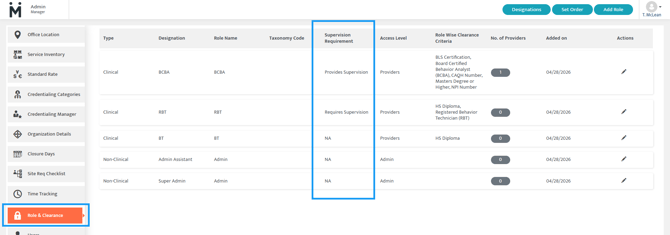
Within this page, locate the Supervision Requirement column.
Assign Supervision Requirements
Each role should be assigned one of the following settings.
Provide Supervision
Use this for roles responsible for supervising RBTs, typically BCBAs.
Requires Supervision
Use this for roles that must receive supervision according to BACB requirements, typically RBTs.
Example configuration
Role: BCBA
Supervision Requirement: Provide Supervision
Role: RBT
Supervision Requirement: Requires Supervision
Edit a Role
If a role needs to be updated:
- Click the pencil icon next to the role.
- Update the Supervision Requirement field.
- Click Update to save.
Once these settings are configured, Motivity will recognize supervision overlaps when appointments are scheduled.
Step 3: Schedule Supervision
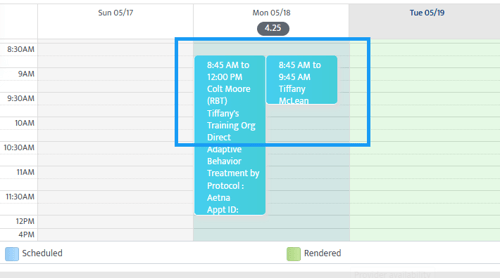
Supervision is tracked by creating an appointment for the supervisor that overlaps with the RBT session.
Open the Provider Calendar
- Navigate to the Scheduler.
- Open the Provider Calendar.
- Use the search bar to locate the RBT you want to supervise.
For example, search for the RBT provider and review their scheduled appointments for the week.
Switch to Patient View
To schedule supervision:
- Click the appointment where supervision will occur.
- Switch the calendar view to Patient View.
You should now see the appointment associated with that patient session.
Add the Supervision Appointment
- Click Add Appointment.
- Select the supervision CPT code.
Example
9155 Supervision
- Complete the required appointment details.
- Select the BCBA or supervising provider.
- Choose the supervision duration.
For example, a 30 minute supervision session.
Create the Overlap
Drag the supervision appointment so it overlaps with the RBT appointment.
Example:
Provider: RBT
Appointment: Direct service appointment - 97153
Provider: Supervisor (BCBA)
Appointment: 30 minute supervision overlap - 97155
Once saved, Motivity recognizes this overlap as supervision.
Step 4: Run Supervision Reports
After supervision sessions are scheduled with overlapping appointments, reports can be generated to measure supervision coverage.
Navigate to Reports
- Open the Reports module.
- Select Scheduling.
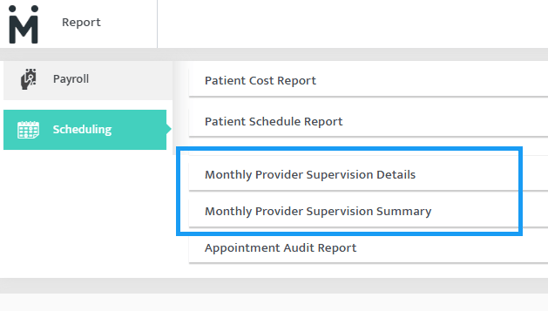
Two supervision reports are available.
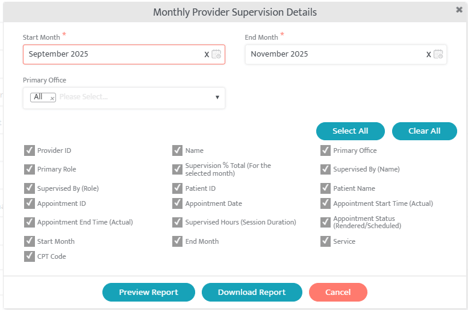
Monthly Provider Supervision Details
This report shows detailed information about supervision overlaps.
To generate the report:
- Select Monthly Provider Supervision Details.
- Choose the Office.
- Select the Start Date and End Date.
- Click Preview Report.
Example date range
September 2025 through November 2025.
The report includes RBT sessions, overlapping supervision appointments, supervising provider, supervision duration, and overall supervision percentage.
Monthly Provider Supervision Summary
This report presents the same information in a summarized format.
To generate the report:
- Select Monthly Provider Supervision Summary.
- Choose the Office.
- Select the date range.
- Click Preview Report.
This report provides a simplified overview of supervision activity and percentages.
Exporting Supervision Reports
After previewing a report you can export it for further analysis.
Export options include downloading the report as a spreadsheet or adjusting which fields are included in the export. Motivity also saves your most recently selected report settings, allowing you to rerun reports quickly without reselecting filters.
Best Practices
To ensure accurate supervision tracking:
Confirm role supervision settings before scheduling sessions
Schedule supervision appointments that overlap with RBT sessions
Use the correct supervision CPT code
Run supervision reports regularly to monitor compliance
Video Walkthrough: Tracking Supervision.mp4
Last Updated: 5/19/26 by Tiffany McLean