
Why is this helpful?
Keeping your provider list tidy ensures that your scheduling is accurate and your billing stays compliant. Knowing exactly what happens during a termination helps you avoid "accidental" data hiccups—like orphan appointments or expired enrollments—before they happen!
How to Deactivate a Provider
Follow these steps to transition a provider to "Terminated" status:
-
Navigate to the Provider Module: Head over to your main provider list to get started.
-
Select the Provider: Click on the name of the professional you need to update.
-
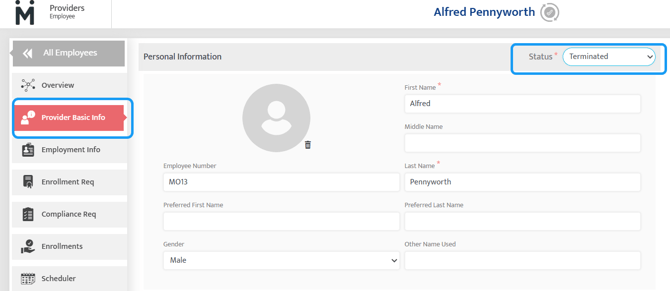
Open "Provider Basic Info"
-
Update the Status: Change the dropdown from Active to Terminated.
-
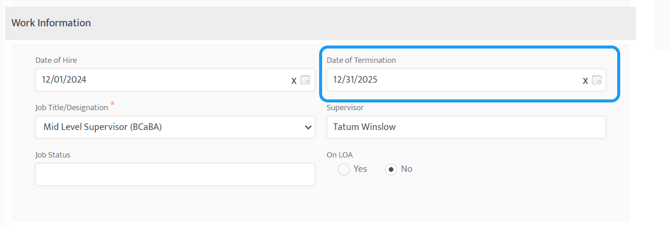
Set the Date: Scroll down to the Work Info section and select the specific Termination Date.
-
Save Your Changes: Click the Save button.
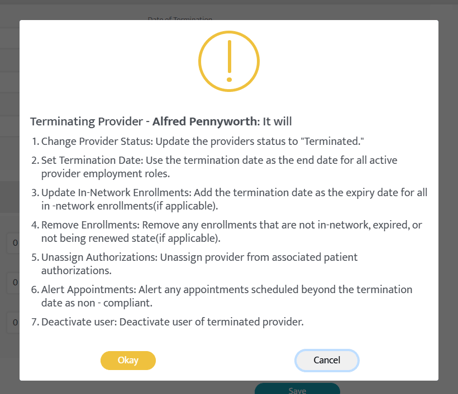
Note: After you click save, a pop-up will appear. It’s not just there for decoration—it’s a friendly reminder of the "domino effect" that occurs once a provider is deactivated.
When a provider is terminated, the system automatically:
-
Removes them from any current Authorizations.
-
Flags any Appointments scheduled after the termination date as "Non-Compliant" (so you can reassign them!).
-
Updates In-Network Enrollments to "Expired."
-
Fully deactivates the provider's system access.
How to Reactivate a Provider
If a provider is returning to the organization, bringing them back to "Active" status is a breeze:
-
Locate the Provider: Find the terminated profile in the Provider Module.
-
Access Basic Info: Go back into the Provider Basic Info tab.
-
Flip the Switch: Change the status from Terminated back to Active.
-
Save: Click Save to restore their status.
Note: While the Provider is back, their paperwork needs a little attention. You will need to manually re-add and verify all enrollments for this Provider to ensure they are ready to be scheduled with patients again.
Other Resources: Enrolling a Provider
Last updated by: Tatum Winslow on 12/31/25