
Secondary Invoices
1. Secondary Invoice / Claim Creation
When a Secondary Funder Exists
- If a patient has a secondary insurance on file, Motivity will:
- Automatically create a secondary claim (CMS-1500)
- Transfer remaining balances from the primary, including:
- Not Covered
- Copay
- Deductible
- Coinsurance
- Secondary invoices are stored under:
- Billing Module → Posted Invoices (under secondary funder)
How to Trigger Secondary Claim Creation
- Post the primary ERA/payment
- Click Save & Post
- Choose one:
- Proceed to Clearinghouse
→ Creates AND submits secondary claim - Proceed
→ Creates secondary invoice only (does NOT submit)
- Proceed to Clearinghouse
Helpful Indicator
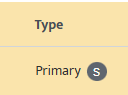
- A black “S” icon next to the funding source = patient has secondary insurance
If NO Secondary Funder
- Remaining balance automatically becomes:
→ Patient Responsibility
2. Interest Payments
How to Apply Interest
- Select manual payment
- Choose:
- Patient
- Date of Service
- Click stacked change icon
- Set:
- Excess Type = Interest
- Enter amount + notes
- Click Save
Resetting Payments Value (Payment Adjustments)
Adjust Total Payment (Overpayments/Refunds)
- Use Reset Payment icon (red circular arrow)
- Options:
- Refund payment
- Offset against another payment
Adjust Applied Payments (Fix Posting Errors)
- If payment applied incorrectly:
- Select reset payment icon on claim line (red circular arrow)
- Revert applied amount
- Invoice reopens for correction
Important
- Any related:
- Secondary claims
- Patient responsibility invoices
→ Will be automatically voided and must be recreated if needed
Denials & Resubmissions
Key Rule (Very Important)
Do NOT use “Save & Post” if you plan to resubmit a denied claim
- This could send denied amounts to the secondary payer
Instead, use Resubmit
Steps to Correct & Resubmit a Claim
Step 1: Fix the Issue
Update as needed:
- Contract
- Patient coverage
- Authorization
- Appointment details
Step 2: Edit Appointment (if needed)
- Go to Collections Module -> Payment Posting
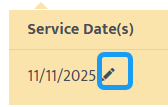
- Select black pencil icon next to Service Date
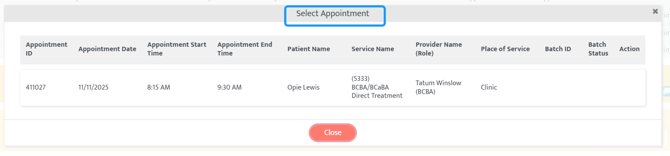
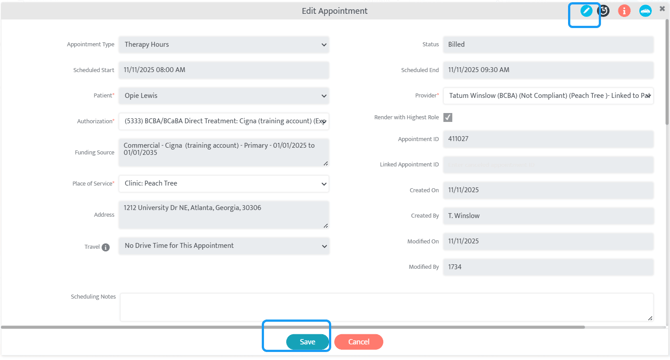
- Select appointment → blue pencil icon → edit → save
Step 3: Resubmit
- Select Resubmit (NOT Save & Post)
- System will:
- Regenerate claim
- Submit to clearinghouse
What Happens After Resubmission
- Claim includes:
- Resubmission code 7
- Original claim reference ID
- If an ERA, the system will automatically pull this number. If manual payment, it will need to be manually entered
- Track under:
- Billing Module → Posted Invoices
|
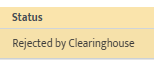
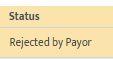
What do I do if: |
Action |
|
Claim rejected by the Clearinghouse
|
|
|
Claim rejected by the payor
|
|
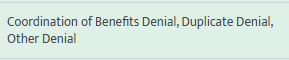
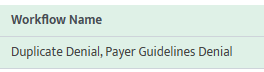
My claim denied as duplicate
|
|
|
My claim denied (for any other reason) |
Contact the funder and work through the denial with them directly |

Next Steps: Now that you have learned about secondary invoices, payment adjustments, and denials, understand when to reverse, regenerate, and/or resubmit a claim in our Motivity Billing 101: Revierse vs. Regenerate vs. Resbumit article.
Last Updated: 4/22/26 by Kayla Lewis