
Un-billed Claims
Module: Billing
Subtab: Un-billed Services
Generating a Batch of Unbilled Claims
To generate a batch of claims for all unbilled appointments in Motivity, follow these steps:
1. Navigate to the Billing Module:- From the main dashboard, hover over the Motivity logo and select the Billing module icon.
- Access the Claims Submission Interface:
- Within the Billing module select "Unbilled Services."
2. Set the Date Range:
- At the top of the screen, enter the desired date range for the services you want to bill. The system automatically defaults to 365 days to ensure timely filing obligations.
Tip: If this is your first time billing, select a wide range covering all past appointments.
3. Select the Claim Filters (Optional but Recommended):
- You will have options to filter by:
-
- Payer/Funding Source: Select the specific insurance company or funding source (e.g., "Medicaid," "Aetna") for which you are generating claims.
-
- Client/Patient: Filter for specific clients if needed.
Tip: It is recommended to filter by funder for each batch to catch contract-specific errors.
- After setting the date range and filters select "Generate Batch" located in the top right-hand corner.

- The batch will then move to the Un-posted Batches tab.
**The claim has not yet been billed. Proceed to Un-posted Batches to finalize claims**
Unposted Batches
Module: Billing
Subtab: Unposted Batches
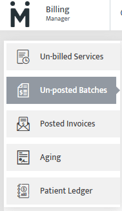
The Unposted Batches subtab is where unbilled claims are grouped together based on their contract configurations and undergo system validation prior to submission.
Once batches are created, the system automatically reviews each claim to ensure all billing requirements are met based on configurations established within the Contracts module and related system setup.
Following this validation process, claims are separated into two categories:
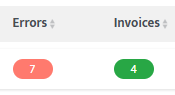
- Invoices – Claims that are ready for submission (Green)
- Errors – Claims that require correction before they can be billed (Red)
Why This Step Matters
The Unposted Batches subtab serves as a critical quality control checkpoint in the billing workflow.
It ensures that:
- Claims are compliant before submission
- Errors are identified early in the process
- Rejections from payers are minimized
- Billing workflows remain efficient and accurate
Best Practices
- Review and resolve errors as soon as they are identified
- Use error details and info icon to identify root causes, not just surface issues
- Monitor trends in errors to identify configuration gaps
- Ensure all contract and provider data is maintained accurately

System Scrubbing Process
After a batch is created, the system performs an automated scrubbing process on each claim within the batch.
This process validates claims against required billing criteria, including:
- Contract configuration settings
- CPT codes and modifiers
- Provider information (e.g., NPI, credentials)
- Authorization requirements
- Required claim fields
The purpose of this process is to identify any issues prior to submission, reducing the likelihood of payer rejections.
Claim Status Classification
Once the scrubbing process is complete, claims within the batch are divided into the following categories:
Invoices (Green)
Claims that meet all billing requirements and are ready to be submitted to the payer.
Key Characteristics:
- All required fields are complete
- Contract rules are satisfied
- No validation errors are present
Steps to Submit Invoices:
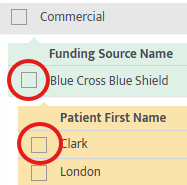
- Utilize the checkboxes on the left to mark the appointments ready for billing
-
Select the green Post button in the top right corner
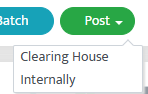
- Select “Clearing house” to send the claim to the payer via clearinghouse or “Internally” to only generate a CMS-1500 form without submitting it to the clearinghouse
Errors (Red)

Claims that do not meet billing requirements and cannot be submitted.
Common Causes:
- Missing funding source information
- Incorrect provider configuration
- Missing authorization number
- Contract setup discrepancies
Steps After Corrections Are Made:
- Correct the identified errors (see table below for examples)
- Return to the Unposted Batches subtab
- Select the (Blue) Regenerate button to refresh the batch and capture corrections
- Once claims move to Clean Invoices (Green), follow the submission steps above
|
Error |
How to Resolve |
|
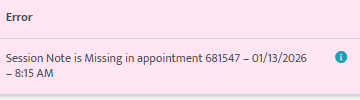
Session note missing
|
• Open appointment in the scheduler and complete the session note • Ensure provider signs the note • Return to Unposted batches and click Regenerate |
|
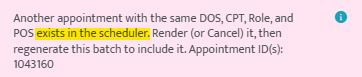
Another appointment exists in the scheduler
|
• Go to the patient’s calendar • Check for overlapping appointments (same DOS, CPT, Provider, etc.) and adjust or cancel if needed • OR ensure all related (“partner”) appointments are rendered • Return to billing and click Regenerate, or rebatch all related appointments together |
|
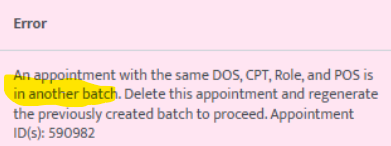
The appointment is in another batch
|
• Click the red X to remove the appointment from the batch • Locate all related (“partner”) appointments with the same DOS, CPT, Role, and POS (may be in other batches) • Remove those from their batches as well • Rebatch all partner appointments together from Unbilled Services • Continue with billing once grouped correctly |
|
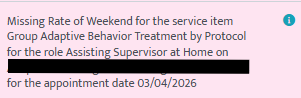
Missing Rate
|
• Check contract Rates & Modifiers for a matching setup (CPT, Role, POS, Location must all align with the appointment) • Verify CPT mapping is correct (if secondary insurance exists, review CPT mapping in the Funding Source tab using the CPT Code link) • Confirm service inventory is set up correctly within the Admin module • Confirm provider’s role and credentials match the contract’s credentialing requirements (Admin module vs. Contract Credentialing settings) • Ensure provider hire date and contract start date are active and before the date of service • If any item is missing or mismatched, update the configuration, then click Regenerate |

Next Steps: Now that you have submitted your claims, learn about posting payments in our Motivity Billing 101: Posting Payments article.
Last Updated: 4/22/26 by Kayla Lewis