
Profile Setup
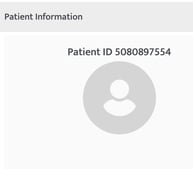
You'll find options to upload a profile picture and assign a unique Patient ID.
To add a profile picture you can click on the gray patient profile placeholder > select the profile photo from your files.
Status
Assign the status of the patient by selecting the drop-down menu. The options are as follows:
- Active: When the admission process is complete, and services can be started.
- Terminated: When a service agreement is terminated. Patient is no longer with the organization.
- In Process: When the patient’s admission process is in progress.

Patient Information, Location, and Contact Information
Please enter all relevant patient information. Fields marked with a red asterisk are required. Although not mandatory, the fields indicated with gray bubbles are recommended, as this information is typically required for claims. Your organization may choose to include additional details based on internal processes and documentation standards.
Assigned Location and Supervisor Assignment
Assign the patient to a designated clinic to support accurate billing and resource management. While each patient can be linked to only one clinic, services may be delivered in any location. Additionally, select a primary and/or assisting supervisor, as this assignment may impact both claims processing and compliance requirements.
Provider Preference
Configure the patient’s provider-driven service preferences. These selections can be used to filter and streamline options during scheduling.
Timeline
The timeline logs all updates made to the patient’s profile, capturing when information was altered, who made the change, and what the previous record was. This can be accessed from the green timeline icon on the bottom right of the page.
Last Updated: 12/3/2025 by Kasey Kramer