
Why is this useful?
Your patient database is the hub of your practice. Mastering these tools ensures you spend less time searching for files and more time focused on care.
How to access patients:
1. Hover over the Motivity icon (black M) in the top left corner.
2. Click on the Patients Module to access the list of all patients.
Patient Page Overview
Search and Filtering:
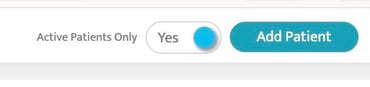
By default you will see a list of all Active patients in the system. You can filter the list to see In Progress and Archived patients by toggling "Active Patients Only" to "No" (located in the upper right hand corner of the page).
Additional search options:
- Search Bar (dark blue box): Use the search bar for quick access to specific patients.
- Office (red box): Use to search by office.
- Supervisor (light blue box): Use to search by supervisor (Note: One has to be assigned to them in order for the search to be applicable).
- Funding Source (yellow box): Use to search by funding source.

Sorting:
You can click on the column title to sort the patient names alphabetically or patient's date of birth chronologically.

Quick Notes
You can add a note for any patient by clicking on the pencil icon under the right-most column on this page. Notes added from here will reflect on patient’s note page. Refer to Patient Notes & Documents for more information.

How to Add patients:
- From the Patient Module view, click the "Add Patient" button in the top right corner.
-
To get the profile started, you must include:
-
Current Status
-
First and Last Name
-
Date of Birth & Gender
-
Assigned Location & the Start Date for that location.
-
-
Next, you’ll fill out the Caregiver section. To move forward, you’ll need:
-
Caregiver First and Last Name
-
Primary Phone & Primary Email.
-
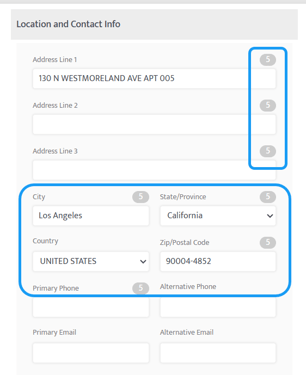
Note: Keep an eye out for the Gray Bubbles! Any field with a gray bubble next to it is used for the 1500 Claim Form. While you can skip these to save the profile initially, your future self will thank you for filling them out now so your billing stays "clean" and error-free.
Last Updated: 12/31/2025 by Kasey Kramer