
Overview
Appointments can be rescheduled, canceled, or reassigned to another provider from either the Client Schedule or the Provider Schedule. Motivity preserves appointment history so users can track cancellations, late cancellations, and provider coverage when scheduling changes occur.
Cancel an Appointment
Steps
- Navigate to the Client Schedule or Provider Schedule.
- Click the appointment.
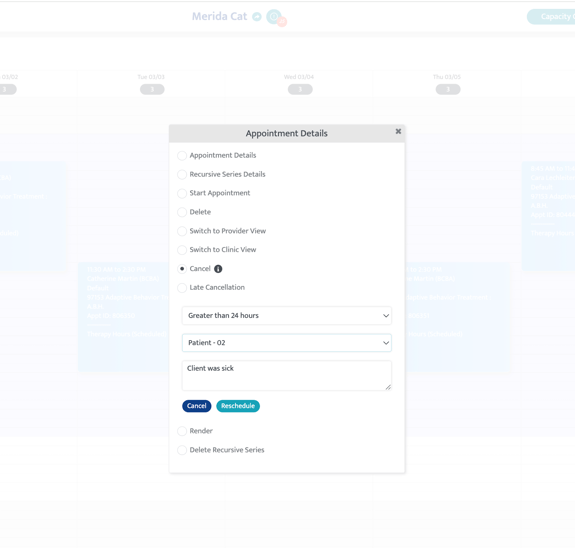
- Select Cancel or Late Cancellation if applicable.
If you select Cancel:
- Select the Cancellation Type:
- Less than 24 hours notice
- Standard cancellation
- Enter a cancellation reason.
- Add notes if applicable.
- Click Cancel to completely cancel the appointment.
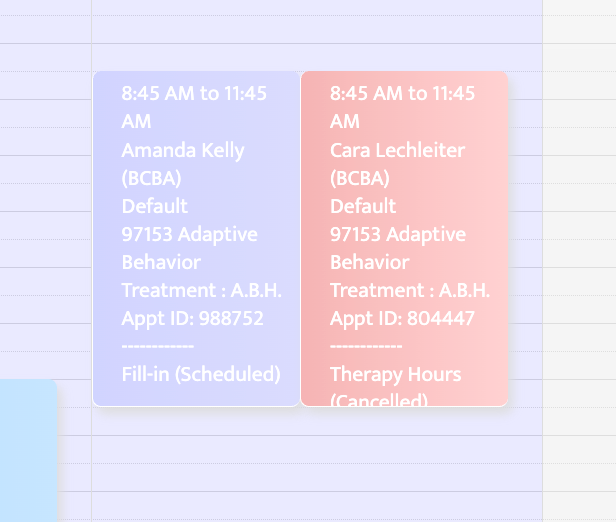
The canceled appointment will remain on the schedule and appear in red to indicate that it was canceled:
Reschedule an Appointment
If Reschedule is selected during cancellation, you will be directed to the Reschedule screen, where you can choose how the appointment should be handled.
Steps
- Navigate to the Client Schedule.
- Select the appointment.
- Click Cancel Appointment and enter the cancellation type and reason.
- Select Reschedule.
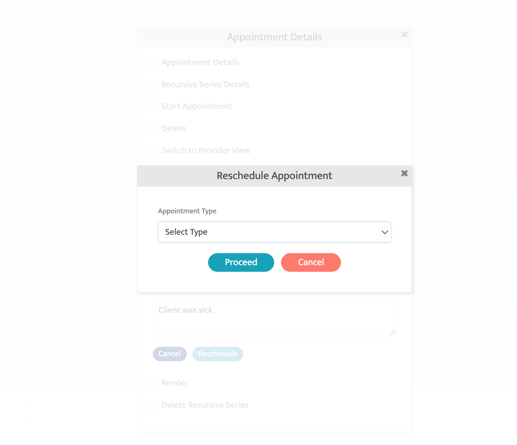
From the Reschedule screen, choose the appropriate Appointment Type (Makeup or Fill-in)
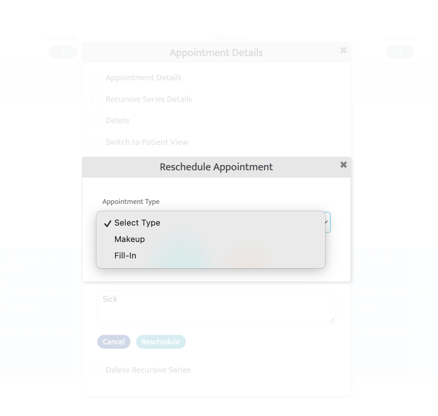
Reschedule Appointment Type: Fill In
Use Fill In when another provider will take over the appointment and the change should be reflected in reporting.
When using Fill In:
- The original appointment remains on the original provider’s schedule as canceled.
- The new appointment appears on the substitute provider’s schedule as a fill in.
- The system maintains a complete history of the appointment, including when and why it was canceled.
Reschedule Appointment Type: Make Up
Use Make Up when the appointment needs to be rescheduled but does not require a provider fill in.
This option allows you to update appointment details such as:
- Date
- Time
- Place of service
- Other appointment details
Late Cancellations
Late cancellations can be recorded by selecting Late Cancellation when canceling an appointment.
Common reasons include:
- Client or provider did not show up
- Client or provider canceled with less than 24 hours notice due to illness
Mass Cancellation
To cancel multiple appointments at one time:
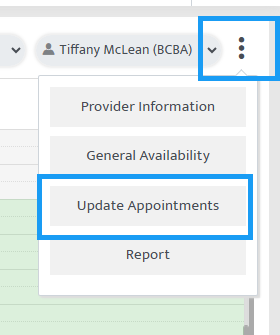
- Select the three dots on the right-hand side of the page and choose ‘Update Appointments’
- Enter a start and end date of the date range that these cancellations will apply
- Enter any other filters
- Select ‘Search Appointments’
- You will see a list of appointments identified to match the date range and filters
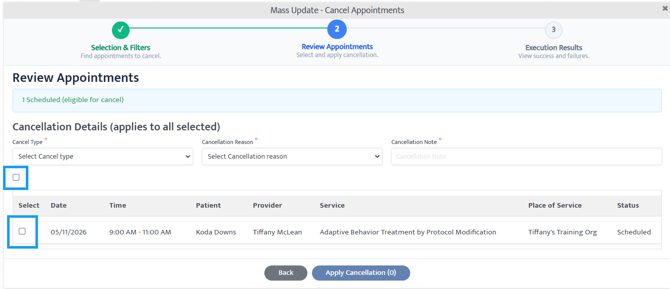
- Select which appointments the cancellation should apply to or use the select all checkbox to choose all the appointments
- Enter the cancellation type, reason, and note
- Select ‘Apply Cancellation’, confirm, and select ‘Finish’
- Now, all the selected appointments have been changed to a cancelled state
Uncancel an Appointment
If an appointment was canceled in error, it can be uncanceled.
Steps
- Locate the canceled appointment on the schedule.
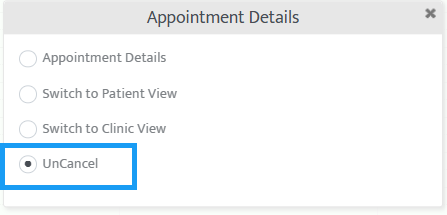
- Open Appointment Details by clicking on the appointment
- Select Uncancel to restore the appointment.
Last Updated: 5/19/26 by Tiffany McLean