
Overview and Prerequisites
This article will review how to schedule an appointment when there are multiple patients for a single provider. Before you schedule a group appointment, you must confirm that the Group Codes are configured correctly. To learn more about group code configuration, please see How to Configure Group Codes in Motivity.
Schedule the Initial Group Appointment
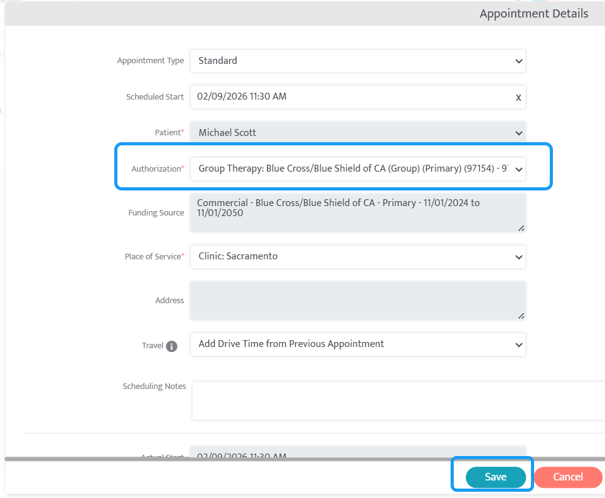
Use the scheduler to book the first appointment, which initiates the creation of the group appointment.
- Navigate to either the provider's schedule or one of the patient's schedules.
- Add a new appointment to the schedule using a group authorization
- Save the first appointment to officially start the group (it will have only one patient initially)
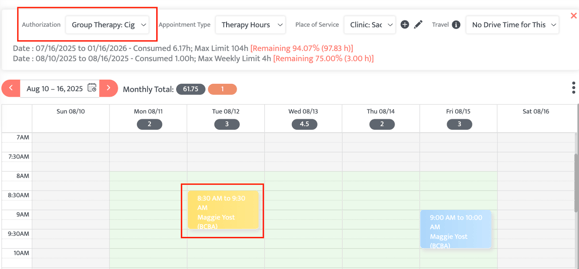
You will now see a yellow appointment on the schedule. This indicates that this appointment is a group appointment.
Add Other Patients to the Group Appointment
You can add up to seven more patients to the scheduled group appointment.
To do so:
- Click the yellow appointment block.
- Select Group Appointment Details.
- Use the "Add Patient" button to include other participants (up to 7 additional patients).
- For each new patient, complete the mandatory scheduling details:
- Authorization
- Service
- Duration
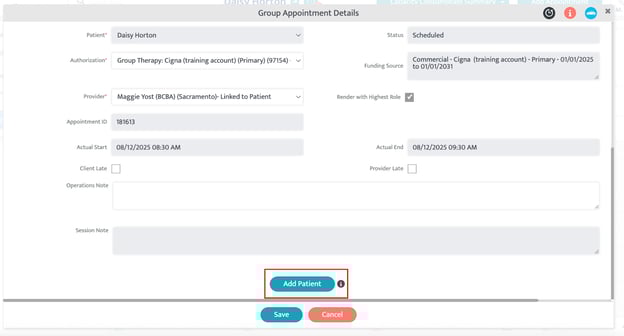
The system performs a full compliance validation for every provider-patient pairing. Real-time alerts will be shown for any unmet compliance requirements.
Visualize the Group in Scheduler Views
The group appointment is displayed differently depending on the user's view.
|
View |
Appearance |
|---|---|
|
Provider's Schedule |
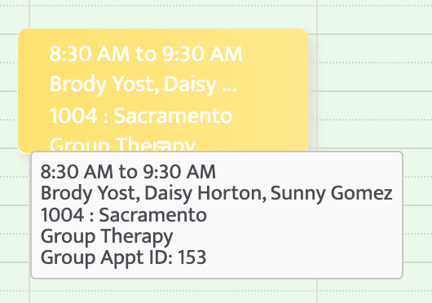
Displays a yellow group-appointment block that spans from the earliest start to the latest end time across all patients. |
|
Patient's Schedule |
Each patient's schedule displays a yellow appointment entry that reflects their respective appointment time. |
Moving a Group Appointment
Dragging and dropping a group appointment to another day or time on the calendar will prompt the following confirmation:
-
Drag a group appointment to a new day or time
-
This will create a pop-up with the following message: “This is a group appointment. The updated schedule will apply to all patients in this group.”
-
Confirm action in the pop-up
-
-
System validates all patients
-
Appointment updates only if all validations pass
Last Updated: 3/31/26 by Tatum Winslow