
Steps to Block Provider Time
- Select the Provider
Locate and select the specific provider whose schedule needs to be modified. - Open the Provider's Schedule
Navigate to the provider's scheduling view or calendar. - Block the Desired Time
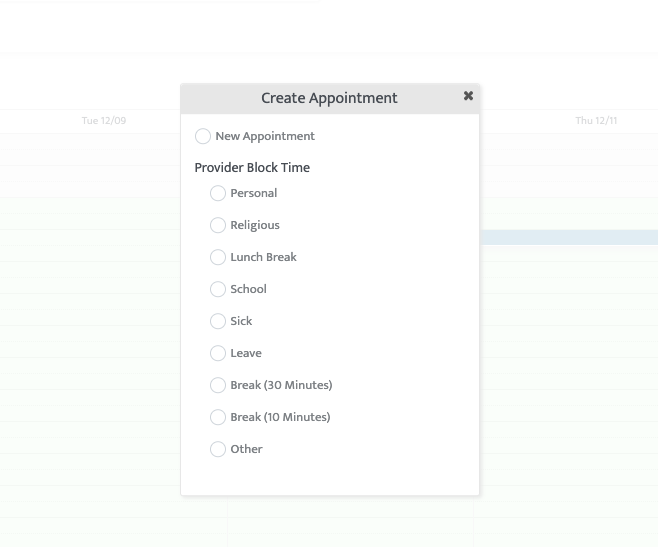
Click on the desired date and drag and drop to select the required time duration that needs to be blocked. This action will prompt a new window or menu to appear. - Select the Appropriate Option
From the list of options presented (e.g., "Personal," "Sick," "Break," "Other"), select the option that best describes the reason for blocking the time. This selection will categorize the blocked appointment. - Confirm the Block
Review the details and confirm the creation of the blocked time slot.
Editing or Deleting a Blocked Appointment
If you need to make changes to a previously blocked time slot or remove it entirely, follow these steps:
|
Action |
Steps |
|---|---|
|
Edit |
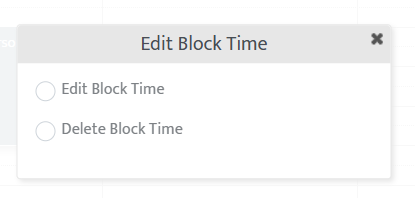
Click on the blocked time in the schedule and select the "Edit" option. A window will appear allowing you to change the time, date, or reason for the block. |
|
Delete |
Click on the blocked time in the schedule and select the "Delete" or "Remove" option to simply delete the block. |
Related Resources
Last updated by: Lauren Ortega on 12/29/25