
Overview
The Motivity dashboard is designed to give you an at-a-glance view of clinical and operational health the moment you log in. Rather than overwhelming you with raw data, it highlights the most meaningful insights first, helping you focus on what matters right now.
Dashboard content may vary depending on your role and permissions, but the goal is always the same: clarity, visibility, and actionable insight.
Why This Is Useful
The dashboard is your command center in Motivity. Knowing how to read and use it helps you quickly understand utilization, performance, and trends so you can make confident decisions without digging through reports or spreadsheets.
Key Sections of the Dashboard
Key Metrics & Performance Overview
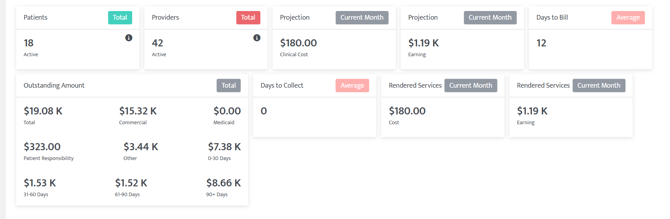
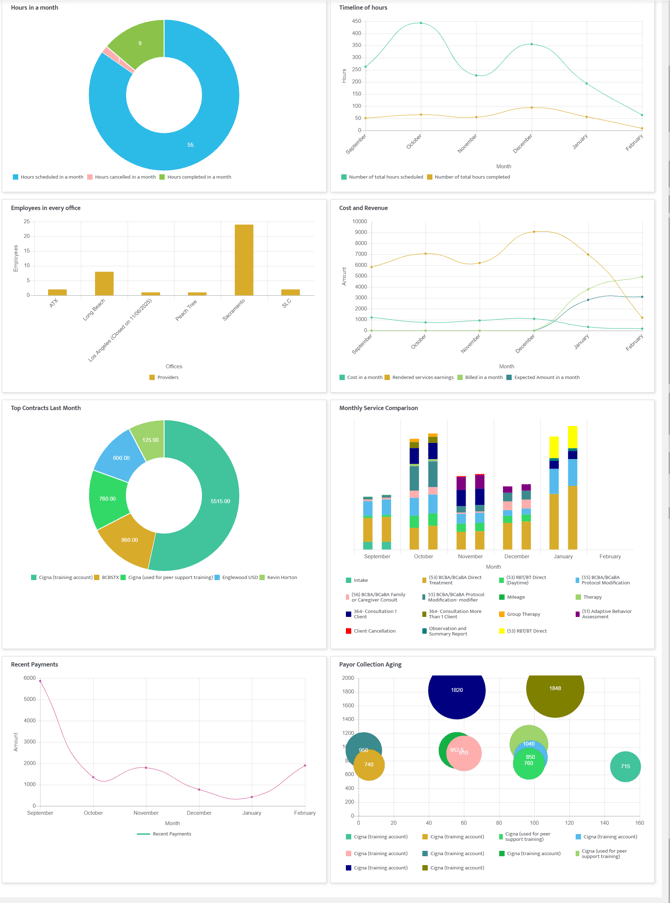
At the top of the dashboard, you’ll typically find a snapshot of important performance indicators, such as:
-
Utilization and productivity trends
-
Session and service delivery activity
-
Caseload or staffing indicators
These metrics help answer the big question quickly: “Are we operating efficiently and delivering care as expected?”
Tip: This section is ideal for a quick daily or weekly check-in, it helps spot trends before they become issues.
Alerts & Items Needing Attention
This area highlights insights or signals that may require follow-up, including:
-
Utilization gaps
-
Missed or incomplete documentation trends
-
Performance indicators that fall outside expected ranges
These cues are designed to be proactive, helping teams course-correct early rather than react later.

Reporting & Insights Access
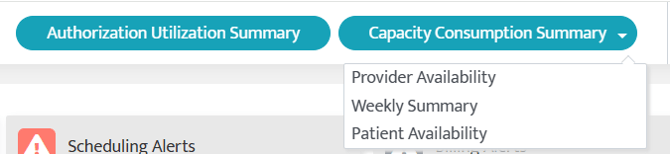
From the dashboard, users can pull reports for the following:
-
Authorization Utilization
-
Provider Availability
- Weekly Services Summary
-
Patient Availability
Rather than building reports from scratch, the dashboard helps surface insights quickly — perfect for busy leaders and supervisors.
How to Use the Dashboard Effectively
-
Start here regularly to review trends and high-level metrics
-
Pay attention to alerts or outliers, they often indicate where support or adjustment is needed
-
Use shortcuts to dive deeper into specific staff, clients, or time periods
-
Review trends over time, not just single data points, to inform long-term decisions
A few minutes on the dashboard can save hours of manual review later!
Helpful Context for New Users
-
Dashboard views can differ by user role (admin, clinical leader, supervisor, etc.)
-
If something looks different than expected, it’s often related to permissions rather than missing data.
-
-
The dashboard reflects near real-time data, so values may update as sessions and documentation are completed
Last Updated: 2/9/26 by James Lingeris