
Overview
To ensure seamless coordination between the administrative team and clinical providers, Motivity supports two distinct types of session-related notes.
Scheduling Notes (Admin → Provider)
Scheduling Notes are managed in Motivity PM and are visible to providers within Clinical when they view the Appointment Details. These are used to relay session-specific logistics.
-
Examples: "Please remove shoes at the front door" or "Park in the neighbor's driveway."
To add a Scheduling Note:
- Select an appointment
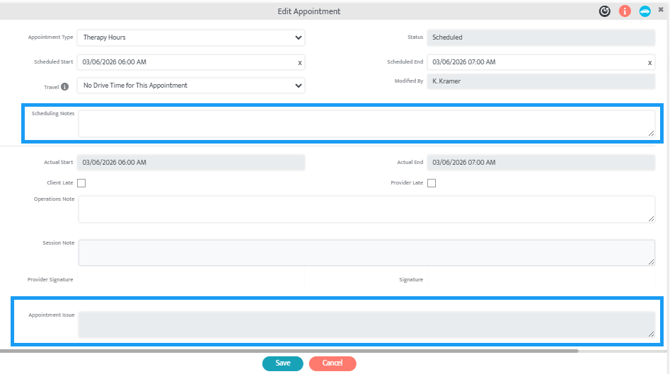
- Navigate to the Scheduling Notes textbox halfway down the Appointment Details pop-up (please see screenshot below)
- Add a note
- Select "Save"
- This will immediately sync to Clinical for provider review
Appointment Issue Notes (Provider → Admin)
Appointment Issue Notes allow providers to communicate session irregularities that may impact scheduling or billing back to the administrative team. These notes sync directly to PM for review.
-
Examples: "Session ended 30 minutes early due to learner illness" or "Severe traffic resulted in a late arrival."
Appointment Issue Notes are visible when looking at the appointment details at the bottom of the pop-up. However, Motivity will also provide a notification when a staff member submits a note.
Managing Alerts in Motivity PM
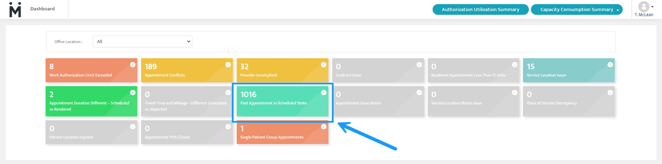
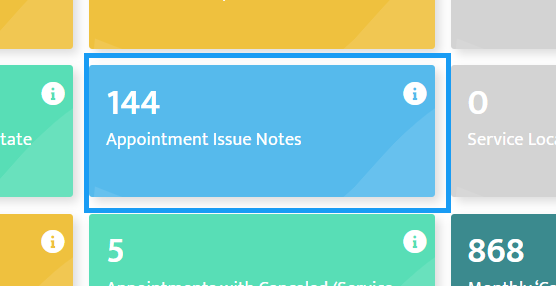
When a staff member submits an Appointment Issue Note, a real-time alert is generated in the Scheduling Alerts dashboard. Users can review all pending notes by selecting the corresponding tile within the dashboard.
-
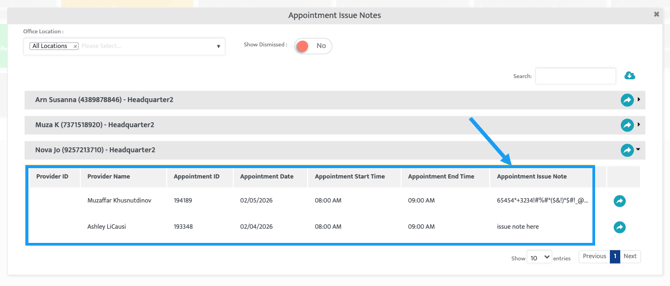
Open the tile to see a filtered list of all appointments containing an Issue Note.
-
This allows the administrative team to quickly identify sessions requiring manual adjustments, such as time updates or billing overrides, based on the provider's feedback.
Last Updated: 2/20/26 by Tatum Winslow