
Overview
Program Template Library Search allows clinicians to search for programs within a single library or across multiple libraries using a unified search experience. The search scans program names, set names, target names, and text within program fields, enabling users to quickly locate relevant program templates and examples.
This article will also review how the search tool works.
Searching for Programs
Permission Requirements
To search for programs within or across your Organization's Libraries, you will need the permission to "View Program Libraries". To search for programs within or across Motivity's Community Libraries, you will need the permission "View Community Program Libraries".
How to Search
To search:
-
Navigate to and select the "Program Template Libraries" tab or a specific library's tab
- Click on "Find" in the top-right corner
- You will see the option to search
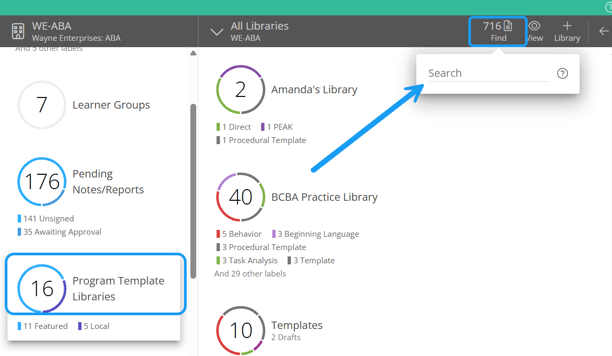
You can enter for as many words as you would like into the search bar, but ALL words must be present to produce a match
For example, if you search "stimulus generalization", the words "stimulus" and "generalization" must both be present somewhere in the item, but not necessarily in the same location or in a specific order.
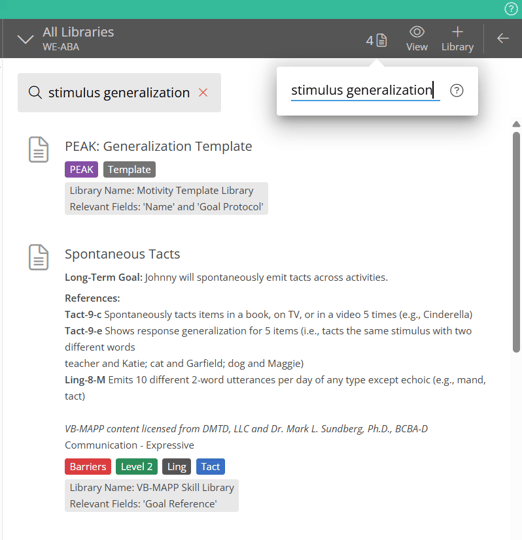
If you search more broadly (e.g. "stimulus"), you will see more results of programs that contain that same word.
Results
Search results start appearing on the screen after a brief delay in typing. You will also see the search term you entered at the top of the screen in a gray box.
Each result will show you to which library the program belongs (Library Name) and why the program was matched to your search term (Relevant Fields).
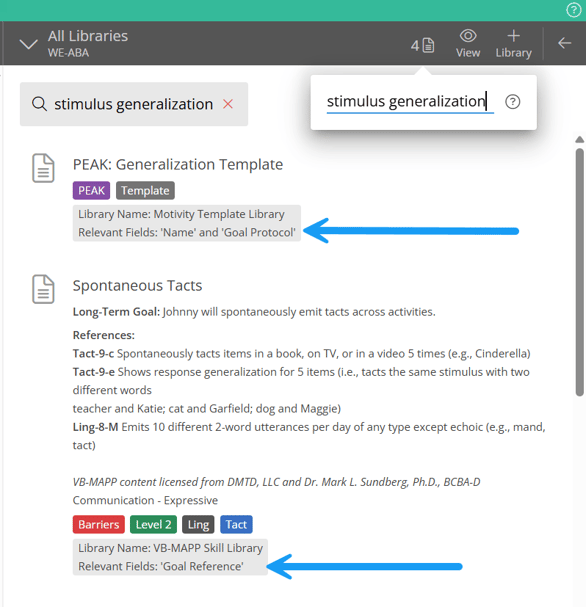
You can clear a search by clicking the "X" on the gray box or by clearing the search bar in the "Find" menu. Results will also be cleared automatically if you refresh the page or navigate away from the search results.
How Search Works in Motivity Clinical
- Your search results are ranked by where within the item they matched.
- For example, if you search for "Imitation", a program title that matched this term would be ranked higher than a program that matched the term in the profile.
- You can combine search with labels to narrow results down further. When used together, labels are always applied to search results.
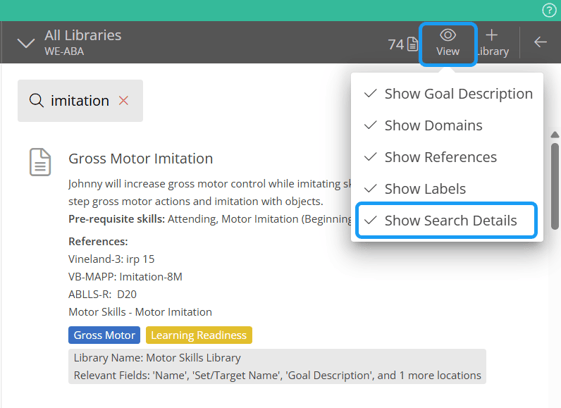
- You will see additional search information added to your matching items to show you where the search term was found. This can be used to help you identify why an item matched your search term and guide you in finding the matching information once you open the item.
- You can turn the additional information off, by clicking "View" and deselecting "Show Search Details"
- Searching starts from the beginning of the word only. Matches to the middle or end of the word will not be returned.
- In general, you will need to enter at least the first three characters of a word before getting results.
- For example, in most places, entering "ap" will not produce a result but "app" may.
- Common filler words are ignored when searching because they would likely produce too many results. These include the words:
- a, an, and, are, as, at, be, but, by, for, if, in, into, is, it, no, not, of, on, or, such, that, the, their, then, there, these, they, this, to, was, will, with
- Search is case insensitive
- Whitespaces before and after words are ignored
- Dates and times are not searchable at this time.
Last updated: 1/30/26 by Tatum Winslow