
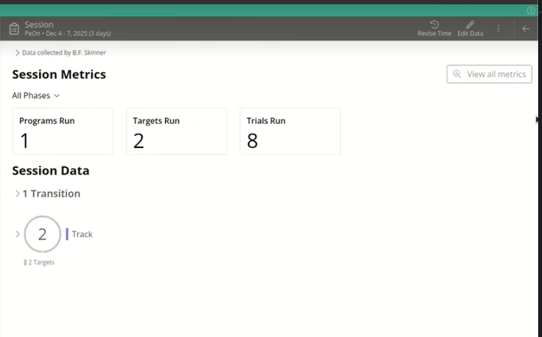
The Session Metrics section allows staff to see exactly what was accomplished at a glance.
Session Metrics
Located right on the Session Overview, the new Session Metrics section shows staff the count of programs, targets, and trials run during the session.
-
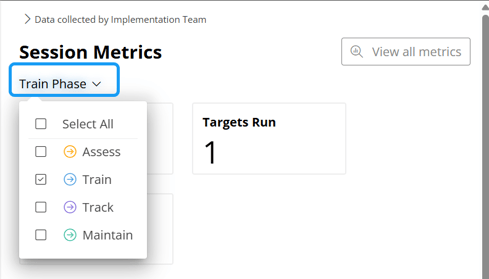
Filter by Phase: Metrics can be filtred by phase type. The Train phase is selected by default, however users can multi-select or switch directly to other phase types.
-
"Sticky" Filters: Any phase selections will only "stick" to that particular session. A different session or date will still default to Train until manually changed.
-
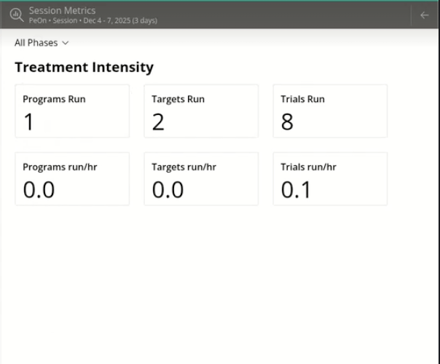
The "View All Metrics" Button: Clicking this opens a dedicated Session Metrics Blade with key clinical KPIs, including counts and "per hour/per day" rates. Click "Close all metrics" to close it.
A Note on Calculations
If a KPI is not a whole number, rounding rules will inform how a KPI is displayed.
For Rates and Averages:
-
0 – 19: Rounded to 1 decimal place (e.g., 12.4).
-
20 or more: Rounded to the nearest whole number
For Percentages and Time-Based Units:
-
Percentages or session hours will always display rounded to 1 decimal place (e.g., 85.5% or 2.5 hours).
Last updated by: Tatum Winslow on 12/29/25