
Collections Module: Posting Payments
1. Accessing & Understanding the Collections Module
Navigation
- Go to Collections from the main menu
- This is your central hub for all incoming payments (ERAs, checks, cash, patient responsibility payments)
What You’re Seeing
Each row represents a single payment (EOB/ERA) and includes:
- Payment Number – Unique identifier for the payment
- Payor Name – Insurance or funding source
- Payment Method – ERA, check, cash, etc.
- Payment Date – Date funds were issued/received
- Total Amount – Full payment received
- Applied Amount – Portion already posted to claims
- Unapplied Amount – Remaining balance still needing allocation

2. Search, Filters, and Workflow Management
Search Options
You can search by:
- Payor name
- Patient name
- Payment number
- Invoice number
- Claim ID
Best Practice
- Work from oldest to newest payments
- Focus on payments with remaining unapplied balances
3. Posting Electronic Remits (ERA)
How ERA Payments Enter the System
- Imported automatically from the clearinghouse
- Appear in Collections once received
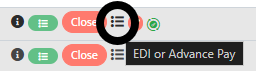
- Identified by the EDI icon/menu
How Matching Works (Behind the Scenes)
Motivity attempts to auto-match ERA lines to claims using:
- Claim Row ID (most accurate)
- CPT Code
- Date of Service
- Billed Amount
👉 If all of these match, the system links the payment automatically
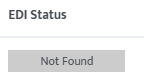
👉 If not, the line is marked “Not Found”
Step-by-Step: Posting ERA Payments
Step 1: Open the ERA
- Select the payment row
- Review all service lines
Step 2: Review System Matches
Look for:
- Correct patient
- Correct date of service
- Correct CPT codes
- Expected vs paid amounts
Step 3: Use Smart Visual Indicators
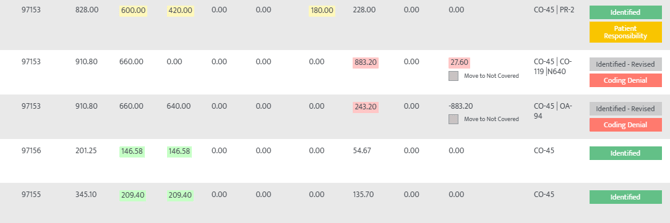
Motivity highlights payment scenarios:
- Green → Fully paid (Expected = Covered)
- Yellow → Patient responsibility or overpayment
- Red → Contractual obligation, denial, or non-covered amount
👉 These help you quickly spot issues without reading every line
Step 4: Save & Post
- Click Save & Post
- This officially applies the ERA to claims
Common ERA Issues to Watch For
- Partial matches (wrong DOS or CPT)
- Mismatched claims from previous system
- Overpayments or duplicate payments
- Incorrect contractual adjustments
4. Posting Manual Payments
When to Use Manual Entry
- Paper EOBs
- Checks or cash payments
- Payments not received electronically
- Adjustments from outside systems
Step-by-Step: Adding Manual Payments
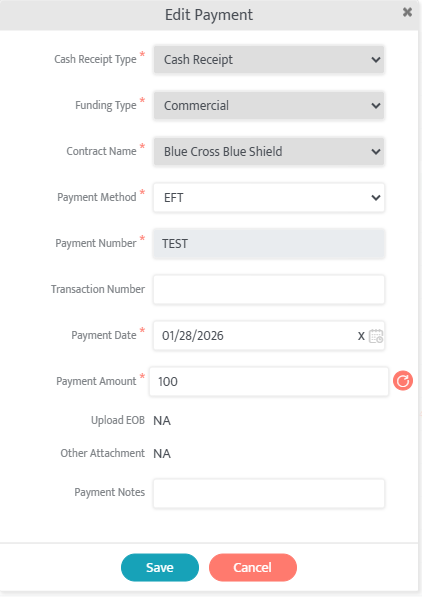
Step 1: Add Payment
- Click Add Payment (top right)
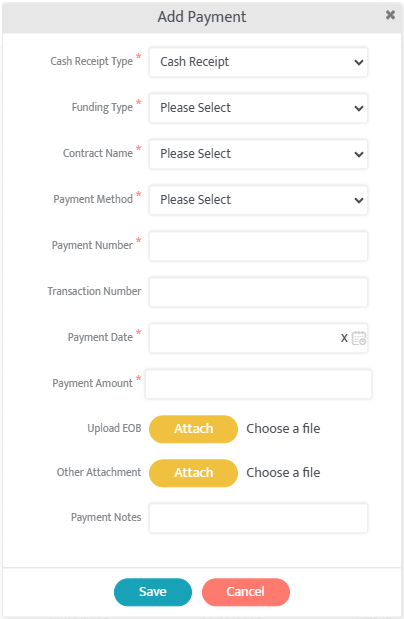
- Enter:
- Cash Receipt Type (Recommended: Cash Receipt. Selecting EDI will prompt an upload of the text file of the EDI)
- Funding Type
- Contract Name
- Payment Number
- Payment date
- Total payment amount
- Select Attach button to upload EOB
Step 2: Save Payment
- Creates a payment record in the system
- Payment will initially show as fully unapplied
Step 3: Apply Payment to Claims
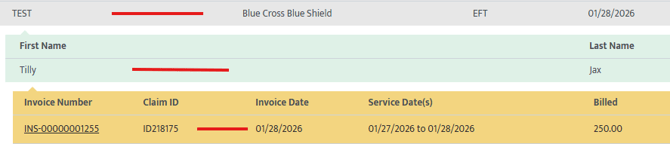
Follow the color-guided workflow:
- Select Payment line (gray row)
- Select Patient (green row)
- Select Date of Service (orange row)
Step 4: Enter Payment Breakdown
Using the EOB, enter:
- Covered amount (insurance paid)
- CO (contractual adjustment)
- Copay
- Deductible
- Coinsurance
- Denial information (if applicable)
👉 These must match the EOB exactly

Note: Both Non Covered and Other boxes will move balance to patient responsibility.
Step 5: Save & Post
- Select Save & Post
- Payment is now applied to the claim
Best Practices for Manual Posting
- Double-check math totals = payment amount
- Ensure correct funder and patient
- Avoid posting to incorrect DOS or CPT
5. Managing Unapplied Payments
What It Means
- Any amount not yet assigned to a claim
What To Do
- Continue applying until:
Unapplied Amount = $0
Why It Matters
- Prevents inaccurate AR
- Ensures clean financial reporting
- Required before closing payment
6. Closing Payments
When to Close
- All funds are fully applied
- No unapplied balance remains
How to Close
- Select Close (button turns green when ready)
- Payment moves to Closed Payments

Why Closing Matters
- Finalizes reconciliation
- Prevents further edits
- Keeps active queue clean
7. Editing, Deleting, and Tracking
Edit (Red Pencil Icon)
- Adjust payment details (amount, method, etc.)
Delete
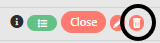
- Only available if payment amounts have NOT been applied
Timeline Icon
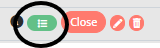
- Shows:
- Who posted the payment
- When updates were made
8. Special Scenarios
Unmatched / Legacy Payments
- Payment for claims not in Motivity:
- Adjust payment total to reflect what can be posted
- Apply available portion
- Close payment
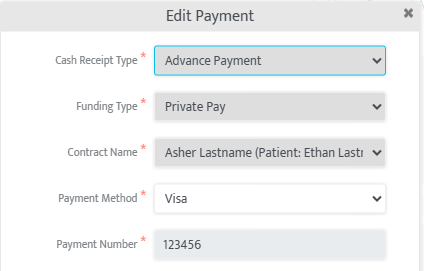
Advance Payments
- Enter as Advanced Payment
- Held until invoice is created
- Not applied immediately
- Used as a placeholder for pending invoice
Patient Portal Payments
- Imported automatically via Stripe
- Appear in queue like other payments
- Require manual application to invoices
9. End-to-End Workflow Summary
ERA Payments
Clearinghouse Import → Review → Validate → Save & Post → Close
Manual Payments
Add Payment → Enter details → Apply to claims → Validate → Save & Post → Close
Next Steps: Now that you have posted your payments, learn about secondary invoices, payment adjustments, and denials and resubmissions in our Motivity Billing 101: Secondary Invoices, Adjustments, and Denials article.
Last Updated: 4/22/26 by Kayla Lewis