
Overview
This article covers how to configure group codes in Motivity to ensure successful group appointment scheduling. You will learn how to add codes to the Service Inventory, manage billing rates, and input the necessary authorizations.
Adding a Group Code to the Service Inventory
To begin, you need to set up the new service in the your Service Inventory. This can be found in the Admin Module.
- Select the Admin Module
- Select "Service Inventory"
- Click on "Add a service"

- When inputting "Service Type" you must select "Group"
- Enter the correct corresponding CPT Code
Important: Do not use the "Therapy" service type when creating a Group Code. Failure to list the “Group” service type will cause issues when utilizing the payroll report.
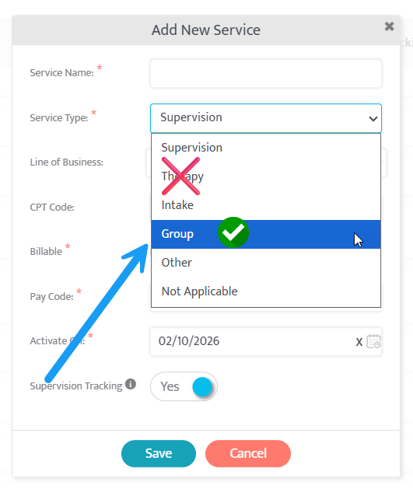
Why Service Type Accuracy Matters
Choosing the correct Service Type is critical for accurate payroll. If the Service Type is set up incorrectly for a Group Code, it can cause duplicate lines on your Payroll Report, leading to potential overpayment or extra manual cleanup.
To address this issue:
-
Confirm the claim with the incorrect Group Code hasn't been billed yet.
-
Remove the Group Code from any contracts and patient authorizations.
-
Edit the Group Code's Service Type within the Service Inventory.
After the Service Type has been corrected, you can add the Group Code back to any relevant contracts and patient authorizations.
Define Billing Rates in Contracts
Once the Group Code is created, you must establish the associated billing rates.
To do so:
- Navigate to the Contracts Module
- Select the relevant payor contracts
- Select "Rates and Modifiers"
- Add the correct provider roles, fee type, and billing rate to the group service item
Note: To learn more about how to add billing rates, please see this article.
3. Secure Group Authorizations
Each patient participating in the group session must have an active authorization for the Group Service.
- Navigate to the Patients Module and review each relevant patient's Funding Source
- Add an authorization for the Group Service under the patient's selected Funding Source
Note: To learn more about adding authorizations, please see this article.
To learn more about how to schedule group appointments, see How to Schedule a Group Appointment.
Last Updated: 2/10/26 by Tatum Winslow